
AI Copilots (Mobile | Web)
Getting Started with Dual Copilot
Dual Copilot brings two AI assistants to Twindo: an offline Mobile Copilot for technicians in the field, and a multi-agent Web Copilot for the office. This guide walks you through how to set up and use both.
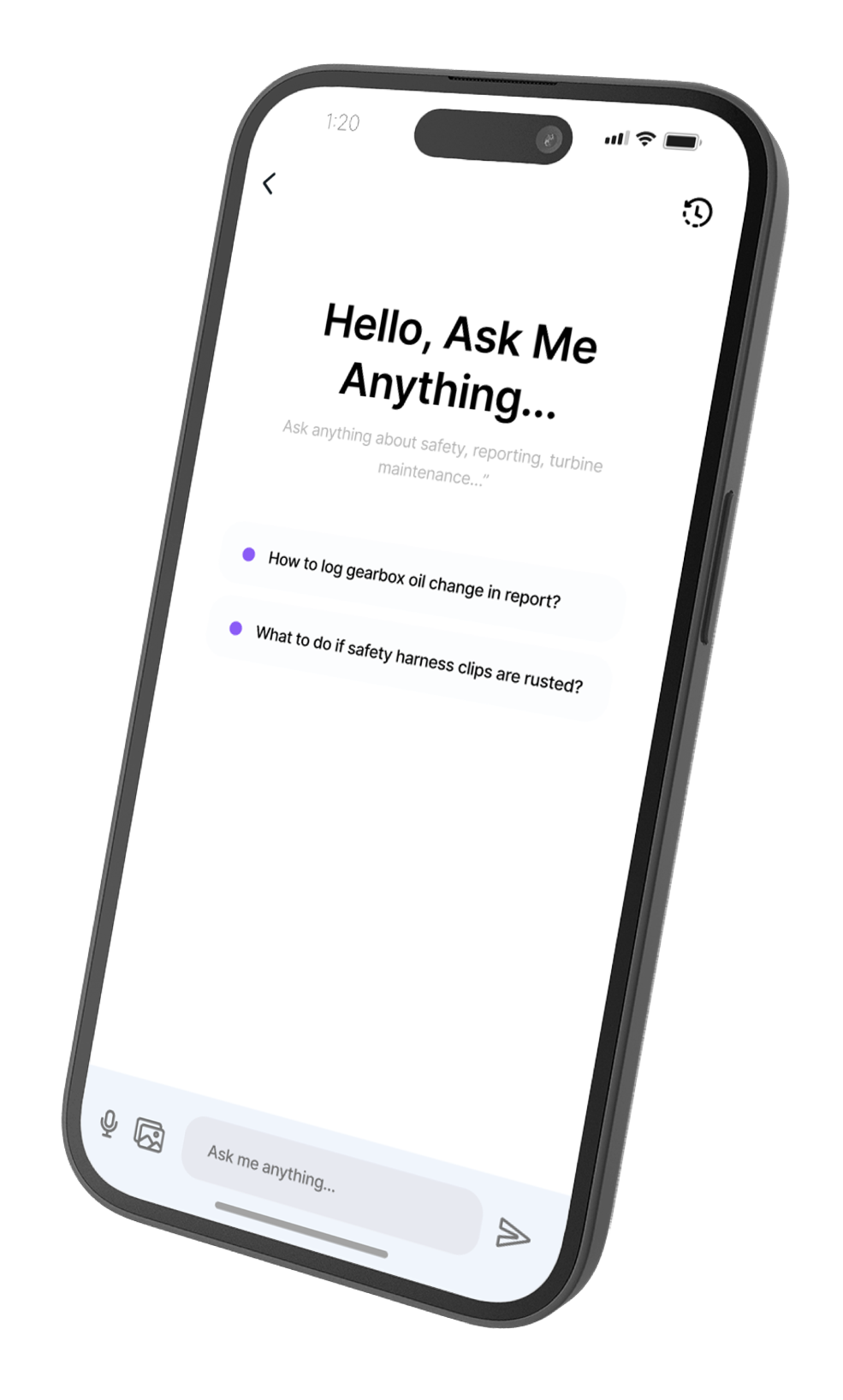
Mobile Copilot
The Mobile Copilot runs entirely on the technician's device; no signal required, no data costs, and no information leaves the phone.
Requirements
- iOS only at launch (Android is coming later this year, we prioritized iOS as 65% of Twindo users are on it).
- 4GB RAM minimum, which covers the majority of standard phones. More RAM means faster performance.
- Under 1GB of storage for the model itself.
- Answers return in around 4 seconds.
Three ways to chat with documents
Technicians can use the Mobile Copilot in three ways:
- Single file: pull a document directly from the phone's local files for a one-off question.
- Spaces: create custom folders containing as many documents as needed, and chat with the whole set.
- Project docs (the main use case): chat with documents attached to a specific Twindo project.
Setting up project docs (back office)
To make documents available to technicians on a project:
- Go to the Project menu and select Edit on the project you want to add documents to.
- Open the Copilot Files tab.
- Add your documents.
- Only PDFs are supported for offline Copilot chat.
- All major file formats can still be viewed offline by technicians when opened individually.
- Use the Recommended For Copilot panel on the right for inspiration, it suggests the document types that work best for technicians in the field. Collapse it with the chevron if you don't need it.
- Hit Save & Next. That's it, every technician assigned to the project can now chat with these documents.
What technicians get
Answers are formatted as a clear summary plus a step-by-step process to follow, with HSE and Quality Assurance principles built into the response style.
Accuracy verification
Accuracy is very high, but it's still AI, verification matters for anything safety-critical. Every answer ends with our verification view, which surfaces the exact PDF pages the answer was drawn from, with the relevant passages highlighted. One tap, and the technician can confirm the source.
Web Copilot
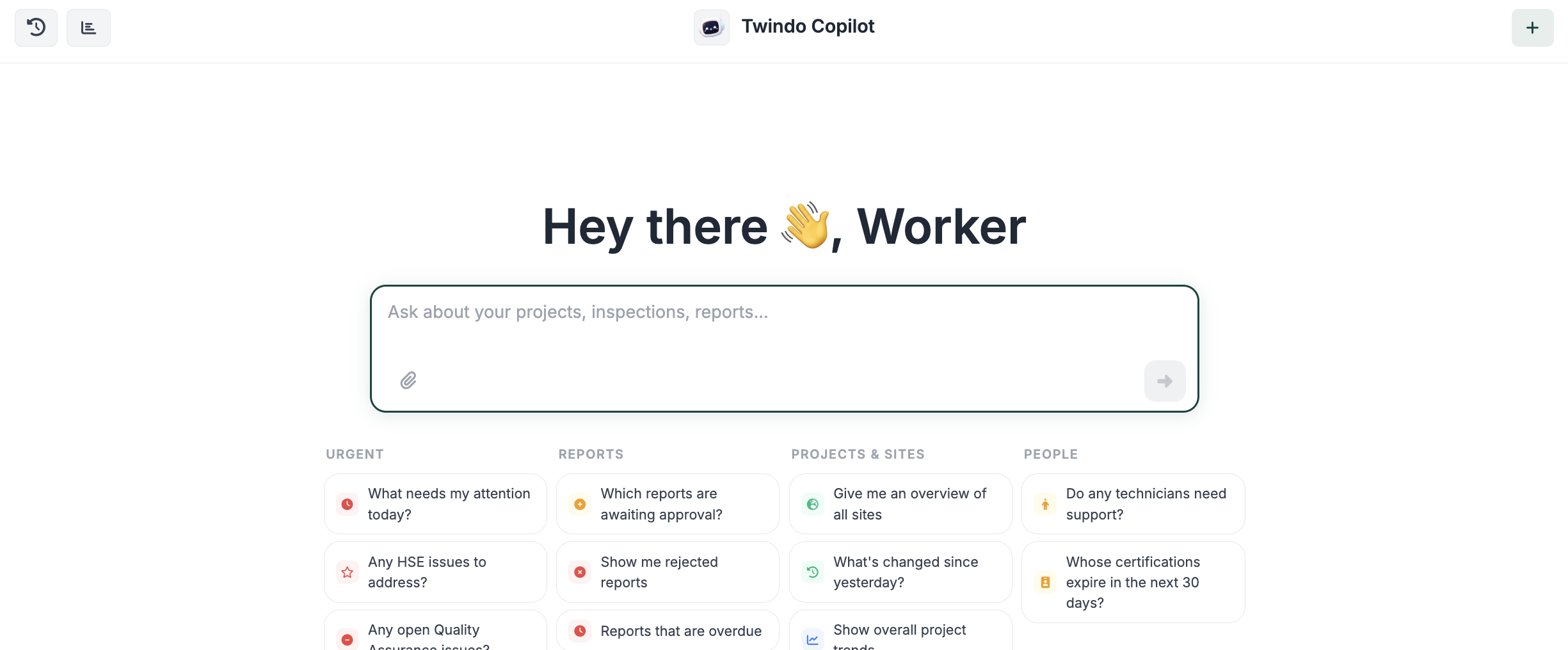
When you log into Twindo, you now land on the Web Copilot homepage, where you can chat with all your Twindo data. Suggested questions are included to get you started.
The Copilot is also available from any other screen, look for the purple Twindo Copilot button in the bottom-right corner. Click it and the chat window opens.

What to expect
- Answers typically take up to 60 seconds, depending on how much data analysis is involved.
- Chats are saved automatically and can be revisited from the top-left corner.
- Next to chat history is your usage meter, see your personal and team monthly usage at a glance. When you hit the limit, contact your customer success manager.
- Export tables to CSV directly from the chat window using the button at the bottom left.
- Answers include quick links into Twindo for reports, timesheets, technicians, projects, sites, and assets.
- To start a new chat select the + plus sign button on the top right of the window.
Following up
Chats are connected, so you can keep asking follow-up questions in the same window. A note: the longer the chat, the less focused the answers become, the more tokens you use, and the slower the response. For best results, start a fresh chat when you switch topics.
Prompting tips
The Copilot understands Twindo's vocabulary best, so use the same terms you'd see inside the platform:
- Say "reports", not "checklists".
- Say "timesheets", not "activity logs" (or ask specifically for DPRs if that's what you want).
- Use "completion rates" for task tracking.
What you can ask
You can ask direct questions about anything in your Twindo data, including:
- Contents of reports, timesheets, and DPRs
- Project and task tracking
- Technician evaluations and performance
- Trend analysis across projects (the kind of patterns that are hard to spot manually)
- Incident investigations and root cause analysis
- Technician financial data, including invoice amounts
If you can think of a question your data could answer, try it.
Client and Supplier Portals
Clients have their own AI Copilot for analyzing the reports and DPRs they receive from you. Encourage them to use it, it saves them time and helps them get more value out of your work.
Technician Web Access
Technicians can also use the Web Copilot when logged in from a desktop. Their access is bound by their permissions, but within that scope they can:
- Search through their own reports
- Get neutral, data-driven feedback on their performance
- Calculate their monthly invoice hours
- If their pay rates are stored in their profile, even calculate their full invoice through the Copilot
Got feedback?
We're shipping more to Dual Copilot regularly. If you have ideas for what would make it more useful, let us know.
Enjoy.