
Twindo is now asset agnostic: asset types, sub-assets and digital twins
Summary
Twindo is no longer limited to wind turbines. You can now create your own asset types, nest sub-assets beneath a parent asset, and attach fields, notes, documents and files at any level of that structure.
The result is a data-based digital twin of each asset: every job, report, team member, project, note and document recorded against that asset or its sub-assets is stored at the correct level and ready for analysis.
This feature is entirely optional. If you only work with turbines, nothing about your existing workflow or historical data changes.
Does this change my existing setup or historical data?
No. Going asset agnostic is additive only.
- Your current workflows continue to work exactly as before, with some minor UI updates.
- Your historical data is untouched and remains where it is.
- "Turbine" still exists in every environment as a fixed asset type and cannot be removed.
- If you do not create new asset types or sub-assets, the platform behaves as it always has.
You only see a difference when you choose to create new asset types or add sub-assets.
Key terms
| Term | Meaning |
|---|---|
| Asset type | A reusable template that defines a category of asset, for example Turbine, Substation, Gearbox. It holds the icon, colour and custom fields used by every asset created from it. |
| Asset | An individual, real-world item created from an asset type, for example turbine WTG-04. |
| Sub-asset | An asset that sits beneath a parent asset, for example Blade A beneath turbine WTG-04. A sub-asset can hold its own sub-assets. |
| Asset tree | The parent-to-child hierarchy of an asset and everything nested beneath it. |
| Asset explorer | The side tab on the asset show screen that opens the asset tree for the asset you are viewing. |
What you can do now
- Manage anything, not just turbines. Create asset types for substations, met masts, PV arrays, buildings, plant, tooling, or anything else your operation runs on.
- Add granularity where it matters. Break an asset down into sub-assets such as Blade A, Gearbox or Drive chain, and record data against the exact component instead of the whole machine.
- Standardise your data. Custom fields defined on an asset type are applied to every asset created from it, so the same information is captured the same way every time.
- Capture from the field. Data captured in the mobile app against an asset or sub-asset is stored at the correct level automatically and is ready for analysis.
- Keep every record where it belongs. Reports, files, notes, custom fields and history are stored against the specific asset or sub-asset they relate to, so a gearbox's records stay with the gearbox rather than sitting at turbine level. That makes Twindo an asset-based management system rather than a job log.
- Talk to your data. All asset data is AI native and feeds your Twindo Copilot (nothing to do with Microsoft). Use natural language to query data, run analytics on the fly, answer questions about your assets accurately and run workflows on your behalf.
- Give clients more. If you are an owner / operator your field data just levelled up. If your clients are owners and operators they use their with their own Twindo agents, via client portal, to interrogate their asset data directly, which saves them time and lets them act faster.
Tutorial 1: Create an asset type
Asset types are templates. Create the type first, then create assets from it.
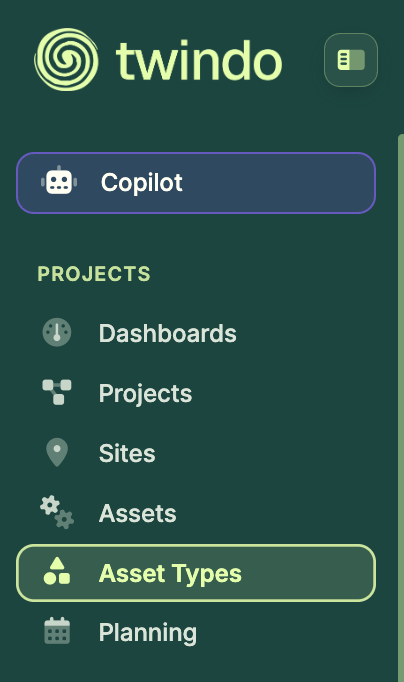
- Open the Asset Types menu tab.
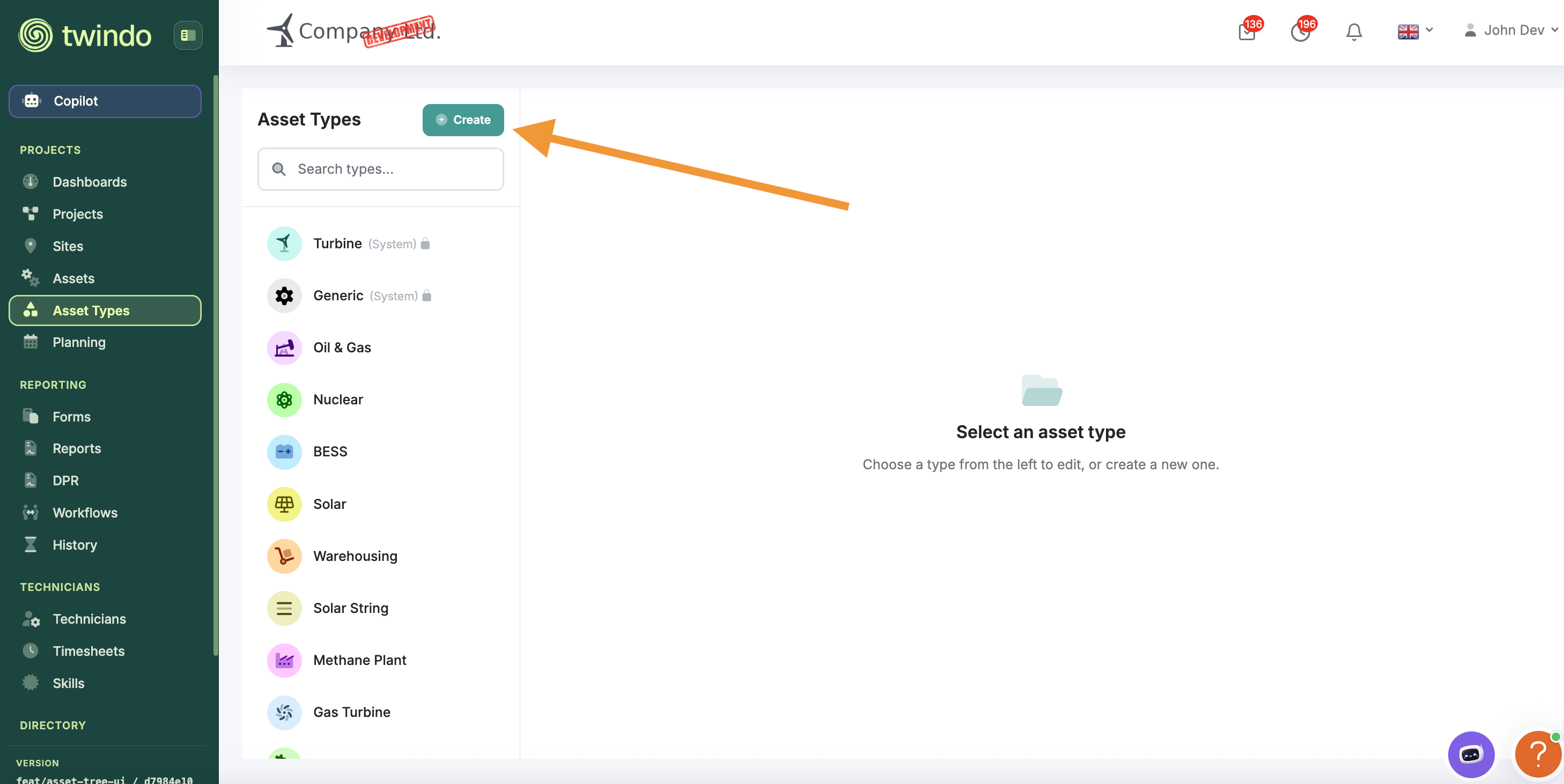
2. Tap Create to start a new asset type. To review or change an existing one, select it from the list instead.
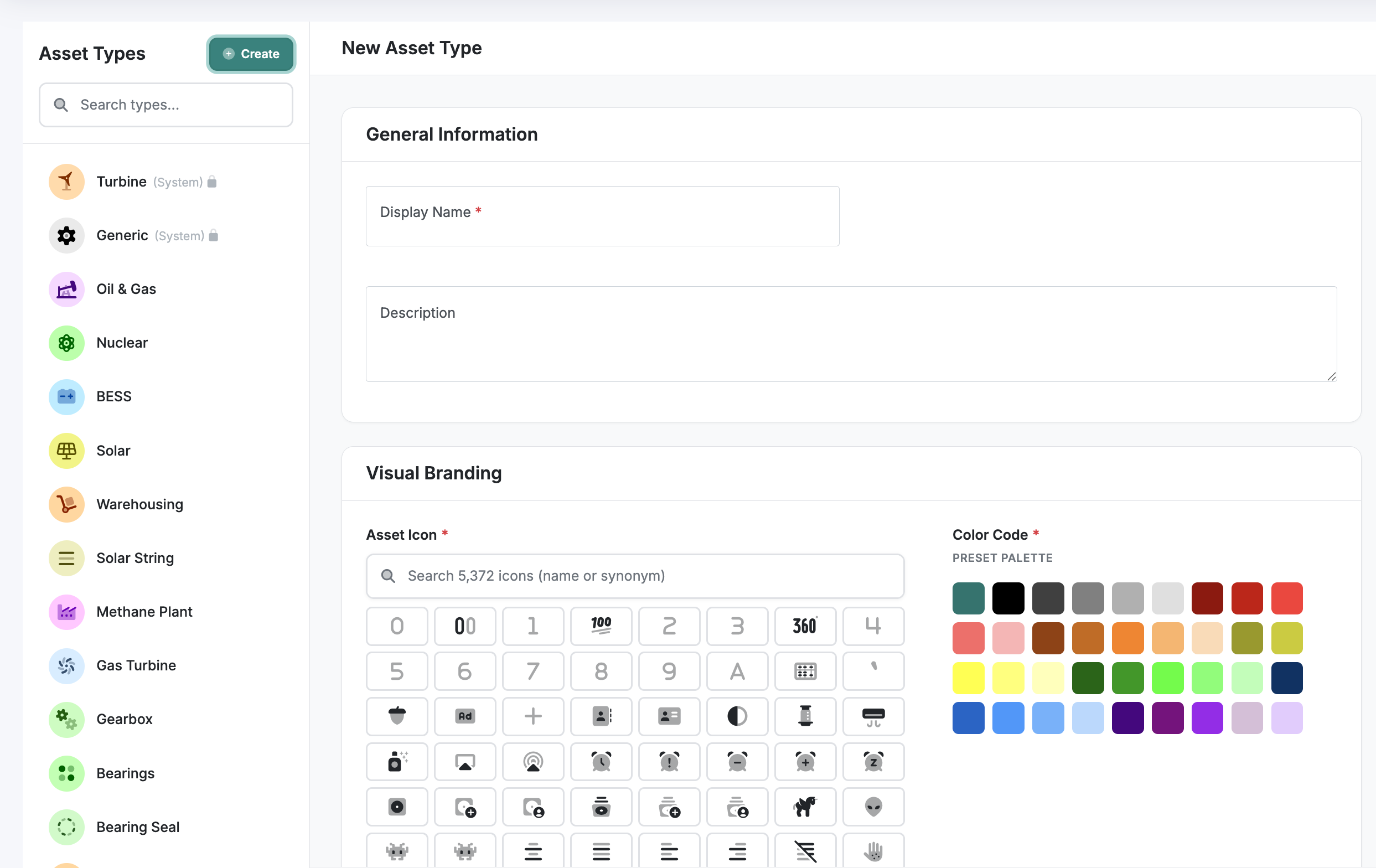
3. Enter the basic asset details. Every new asset type opens with a set of default detail fields. None of them are mandatory; they are there as a standardised starting point, so fill in the ones that suit the asset type and leave the rest.
Note: Asset name (pad number) and serial number cannot be set in the template view. They identify one specific asset rather than a category of assets, so you enter them when you create the individual asset, not on the asset type.
4. Select an icon and an icon background colour. This icon then identifies the asset type everywhere in the platform.
5. Add custom fields if you need them. Custom fields behave exactly like fields in the regular form builder, with the same range of field types available; text, time and date pickers, drop-down menus, images, file uploads and more. See Tutorial 2 for the steps.
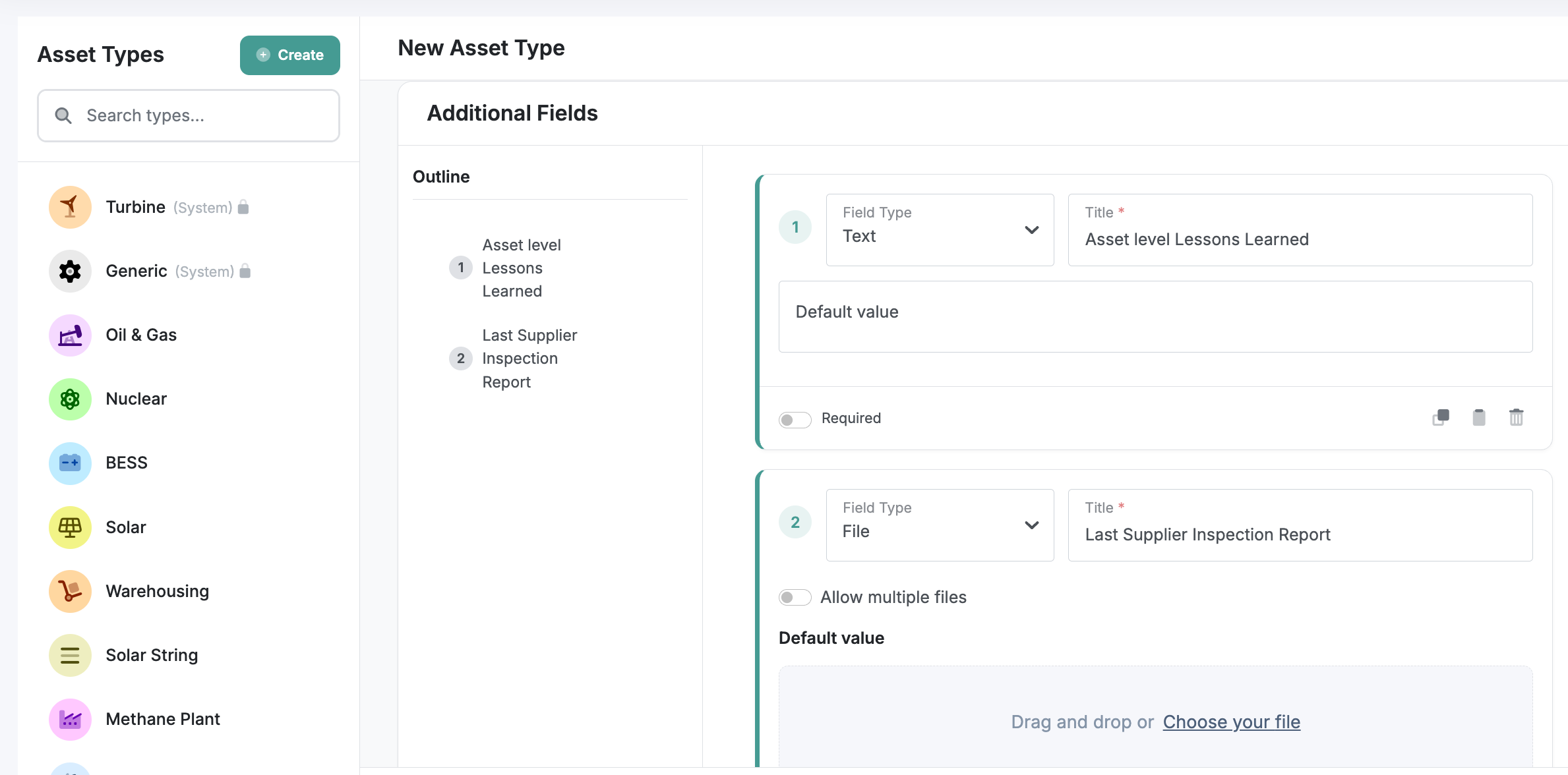
6. Tap Save.
Your new asset type template is now available and can be used for assets and sub-assets.
Everything captured through these fields becomes AI-native data at the asset level, so your Copilot can analyse it alongside the rest of that asset's record.
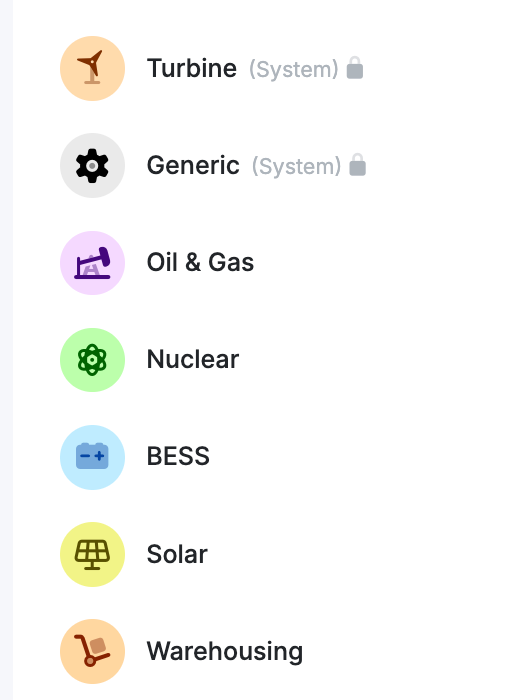
Examples of asset types you might create: Substation, Blade A, Gearbox, Drive chain, Nacelle, Transformer, Electrical cabinet, Access hatch.
Note: Turbine is a fixed asset type that already exists in your environment and cannot be removed.
Tutorial 2: Add custom fields to an asset type
Custom fields let you record repeatable, structured information at asset level. They operate the same way as the regular form builder, so you have the same field types to choose from: free text, time and date interfaces, drop-down menus, images, file uploads and more.
1. Open the Asset Types menu tab and select the asset type you want to change.
2. Scroll to the Additional Fields section.
3. Tap Add Field.
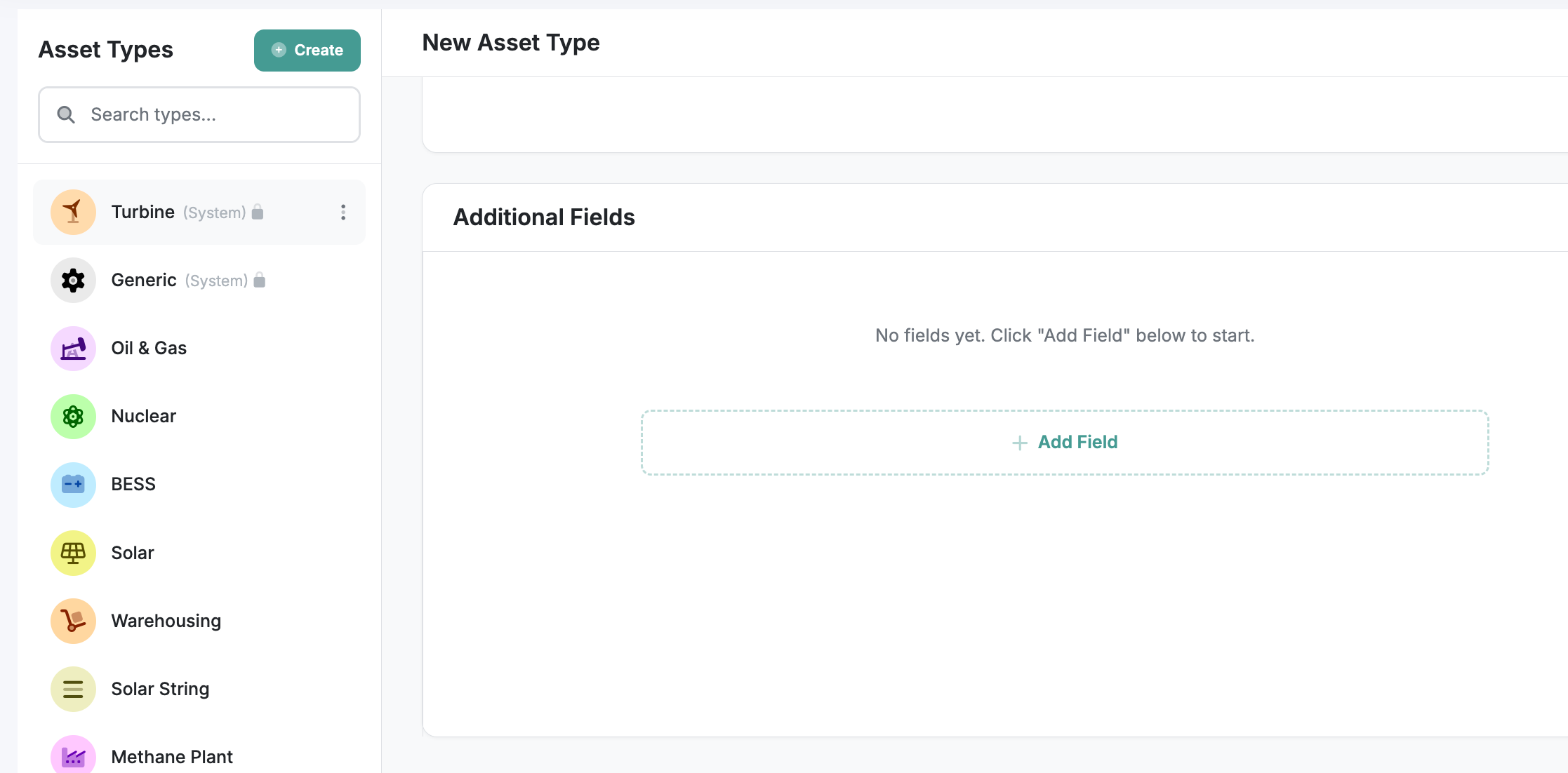
4. Configure the field and repeat for each additional field you need.
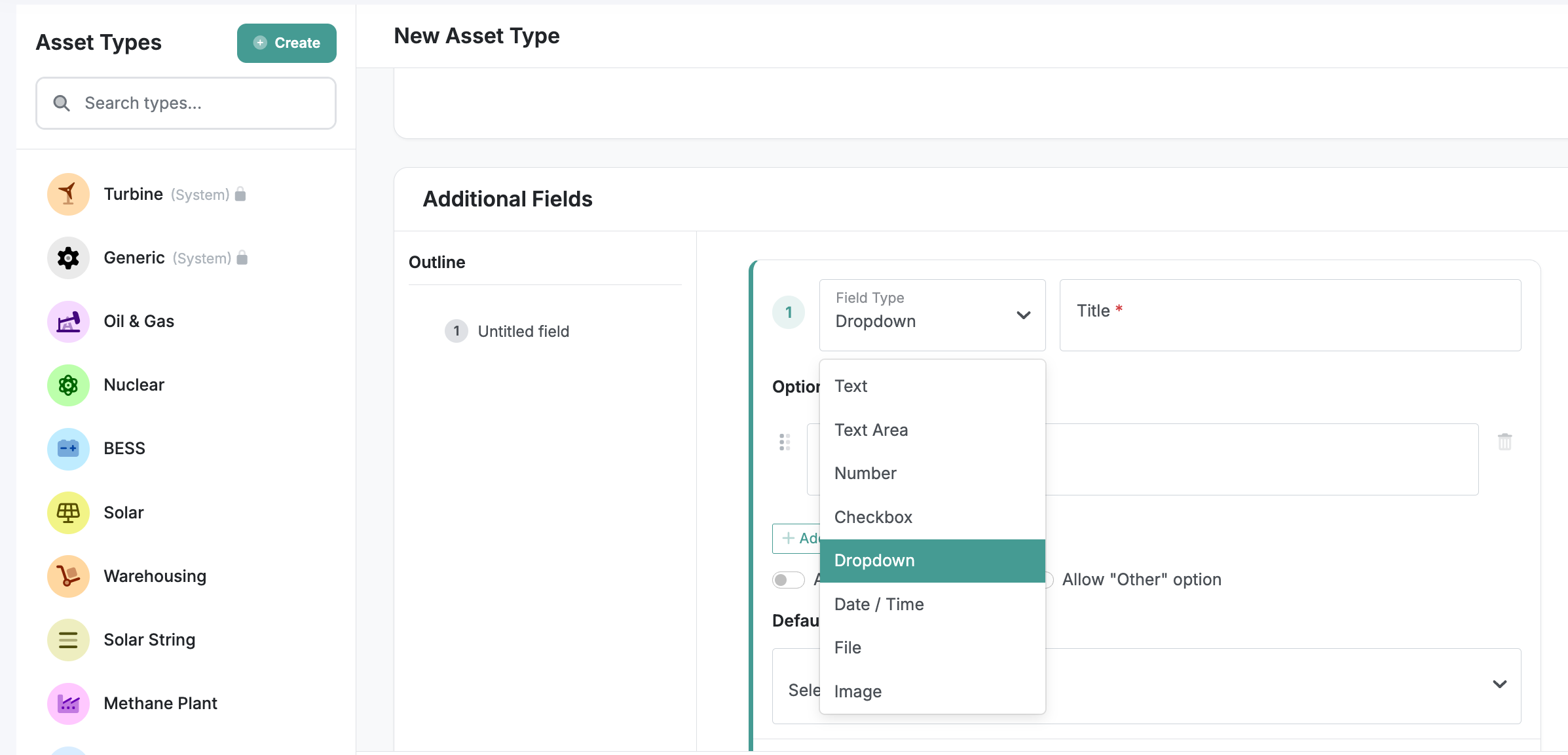
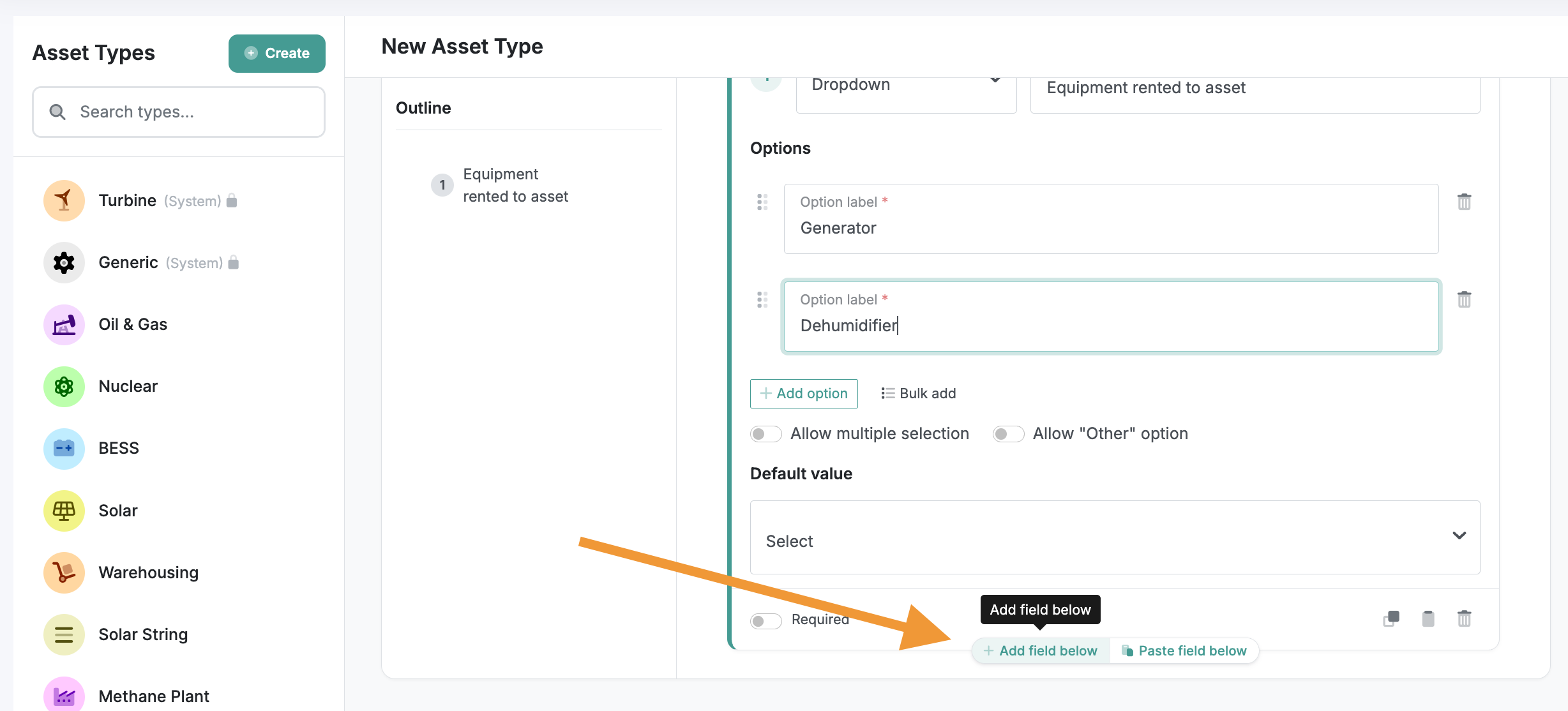
5. Tap Save.
Every asset created from this asset type now carries these fields. Because the data is consistent, your Twindo agents can build reliable, repeatable workflows on top of it.
Tutorial 3: Add an asset to a site
Assets always live inside a site (at least for now), so you create them from the site rather than from the assets list.
1. Open the Site menu tab and select the site.
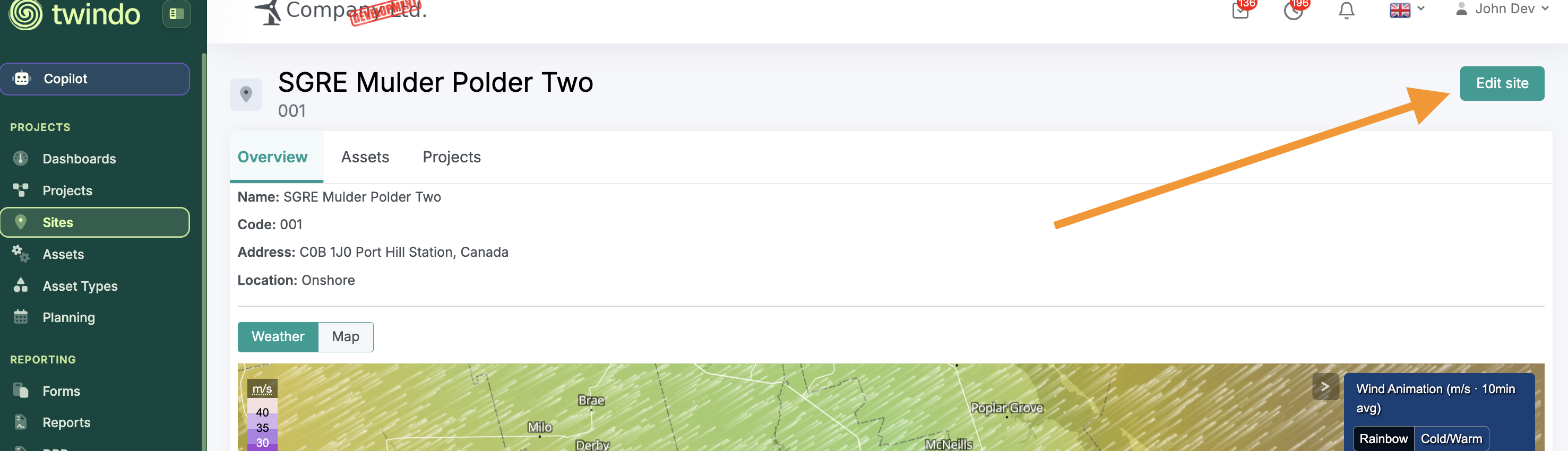
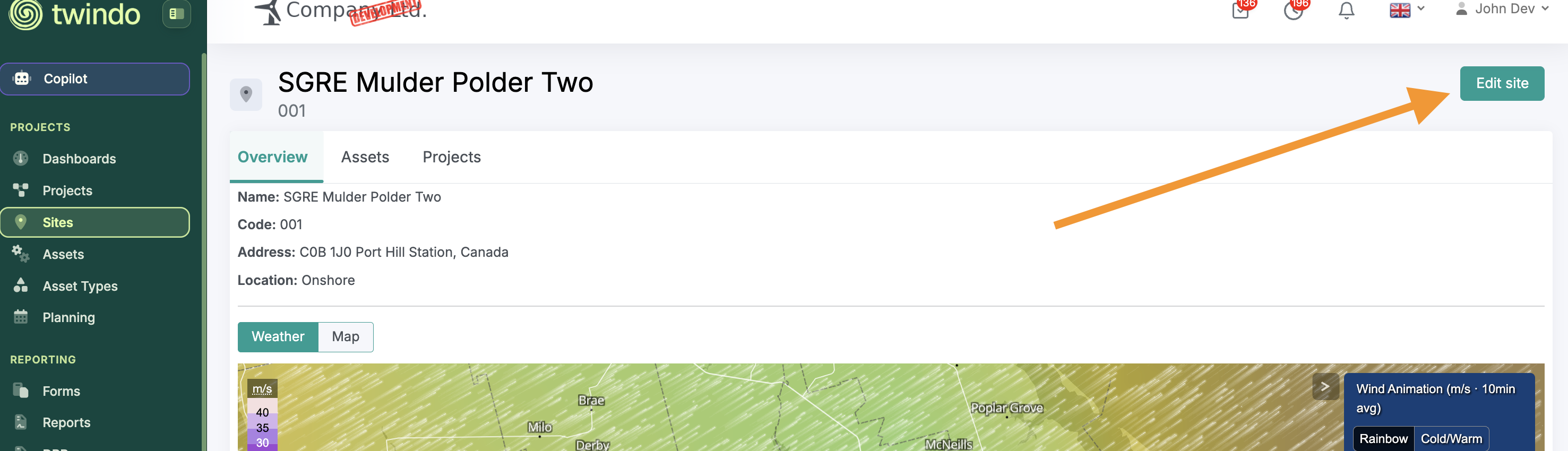
2. Tap Edit site.
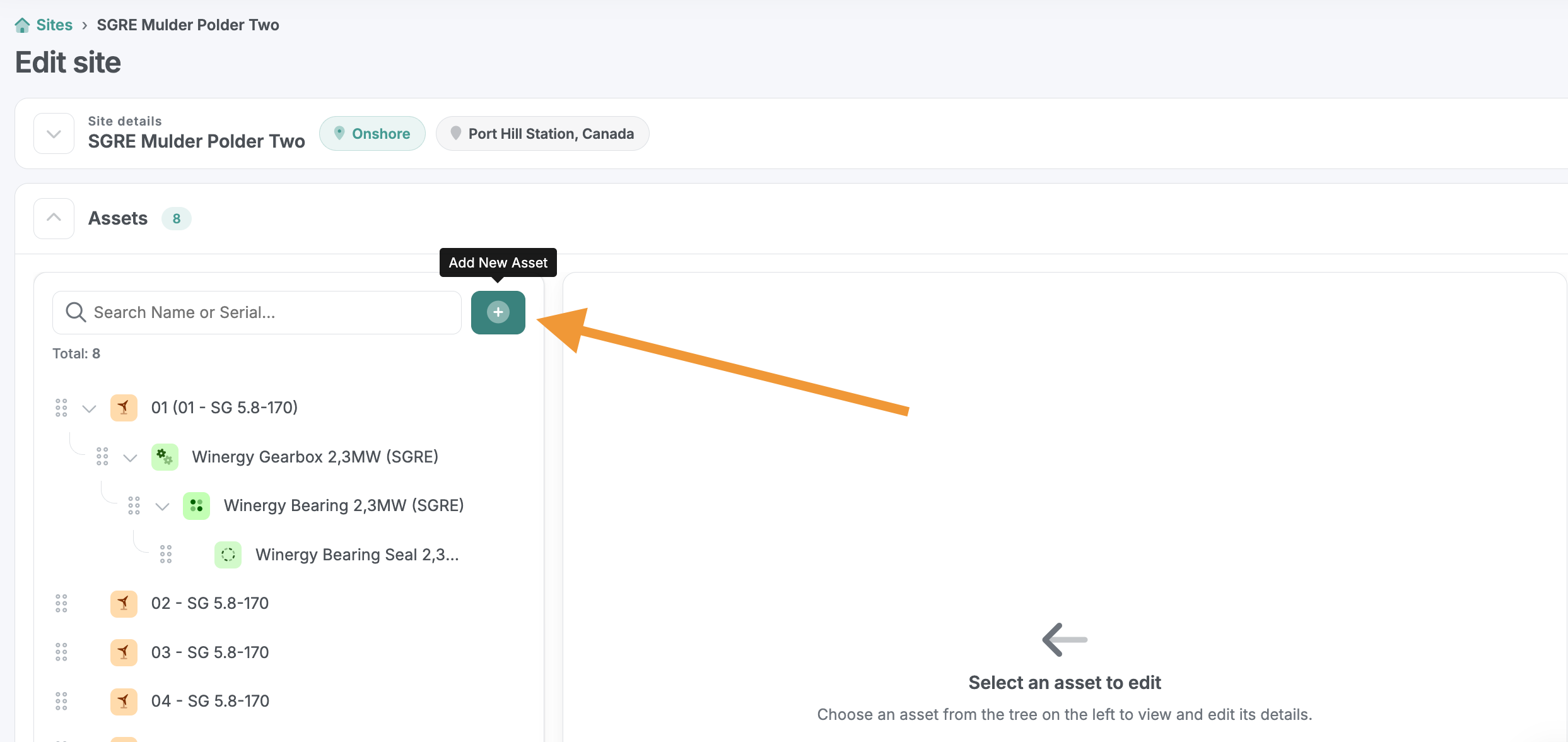
3. Tap Add new asset.
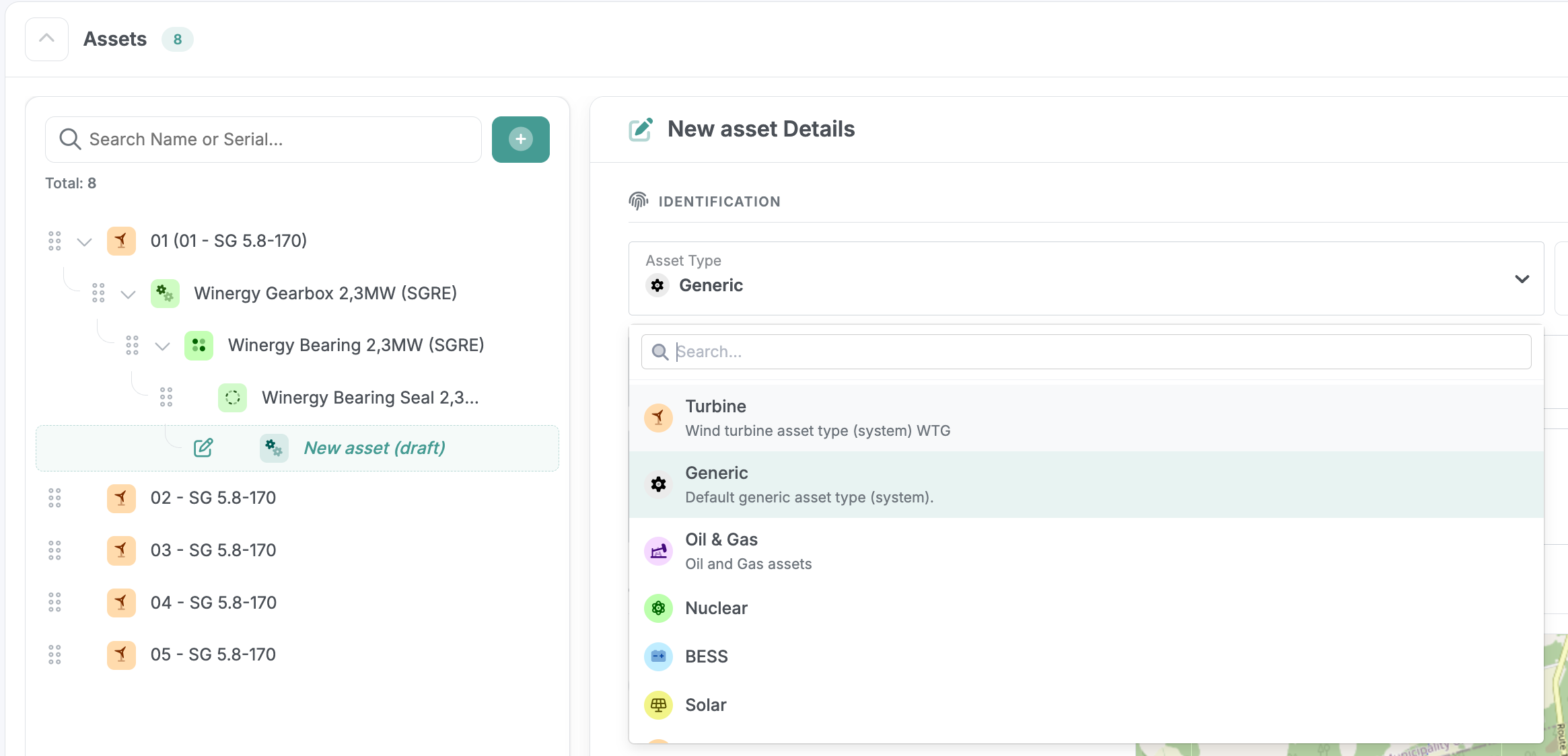
4. Select the asset type for the asset you are adding.
5. Fill in the asset details. This is where you enter the fields that belong to one specific asset, including asset name and serial number.
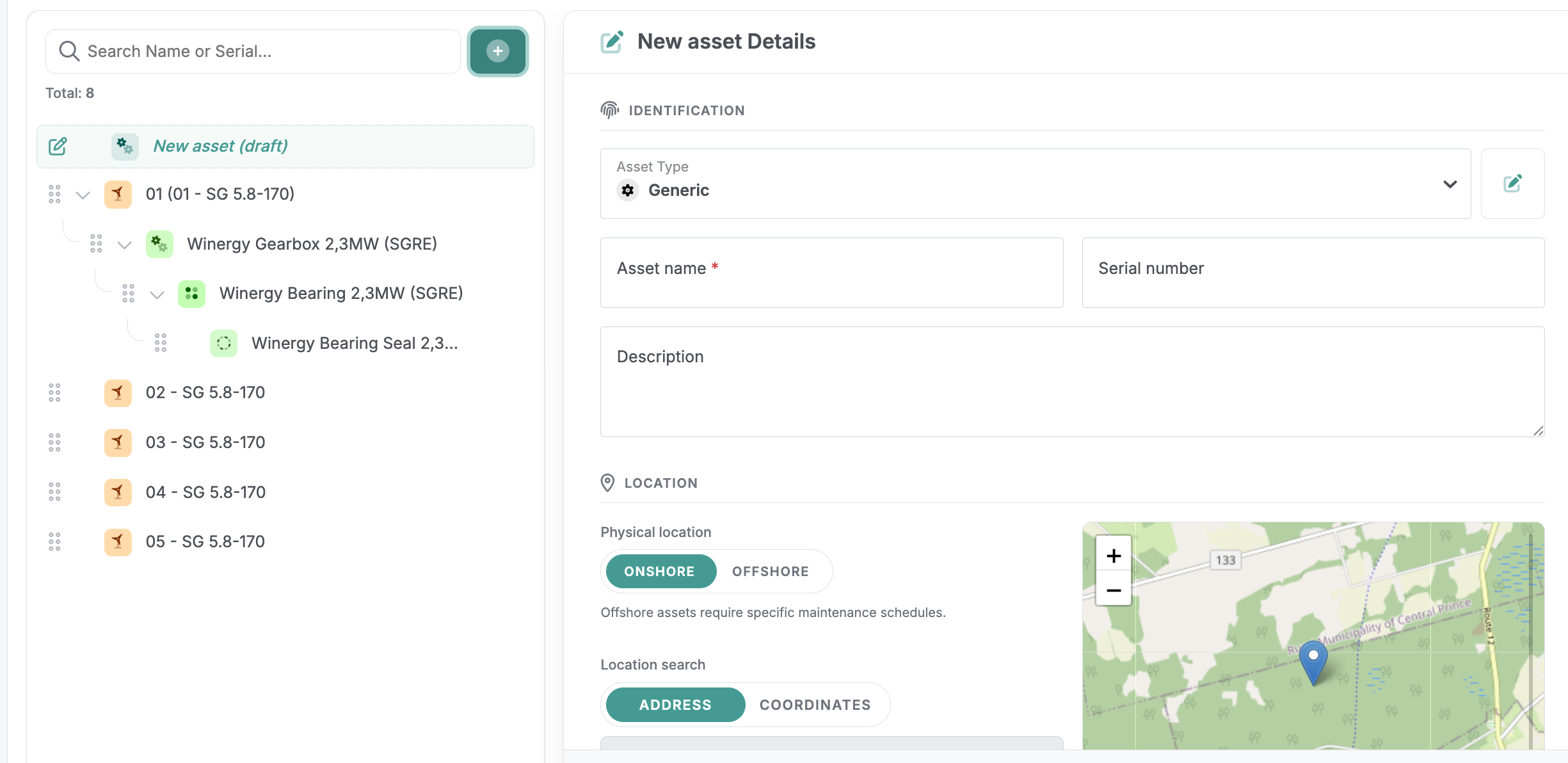
6. Tap Create asset at the bottom left of the screen to save it.
Note on field names: Asset name was previously called "Pad number". Serial number is unchanged from the earlier turbine-based version.
Note on coordinates: Asset coordinates now appear on map view, so you can see every asset where it actually sits on site, along with the weather it is experiencing through the weather maps.
Tutorial 4: Add a sub-asset
Sub-assets are added from the asset tree inside the site edit screen.
1. Open the Site menu tab, select the site, and tap Edit site.
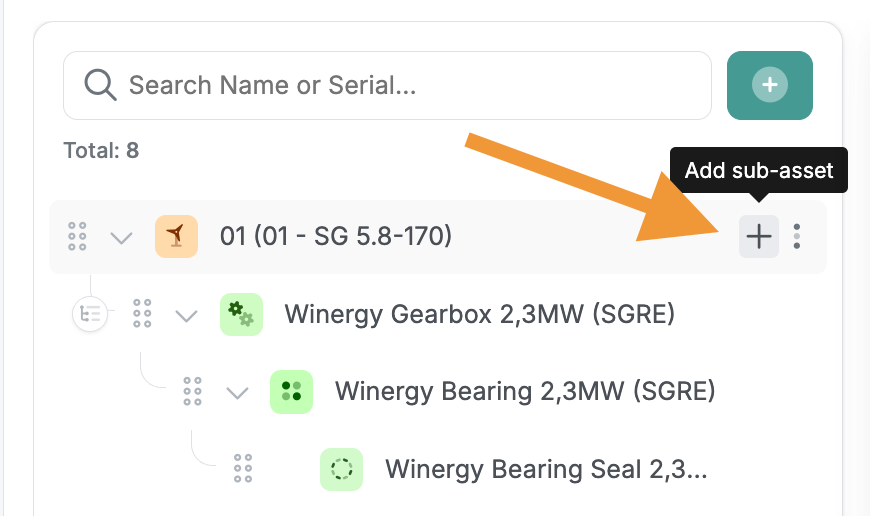
2. Find the asset tree on the left of the screen.
3. On the row of the asset you want to nest beneath, tap the Add sub-asset button, the small cross icon on the right of that asset's row.
4. Select the asset type and fill in the details, exactly as you would for a top-level asset.
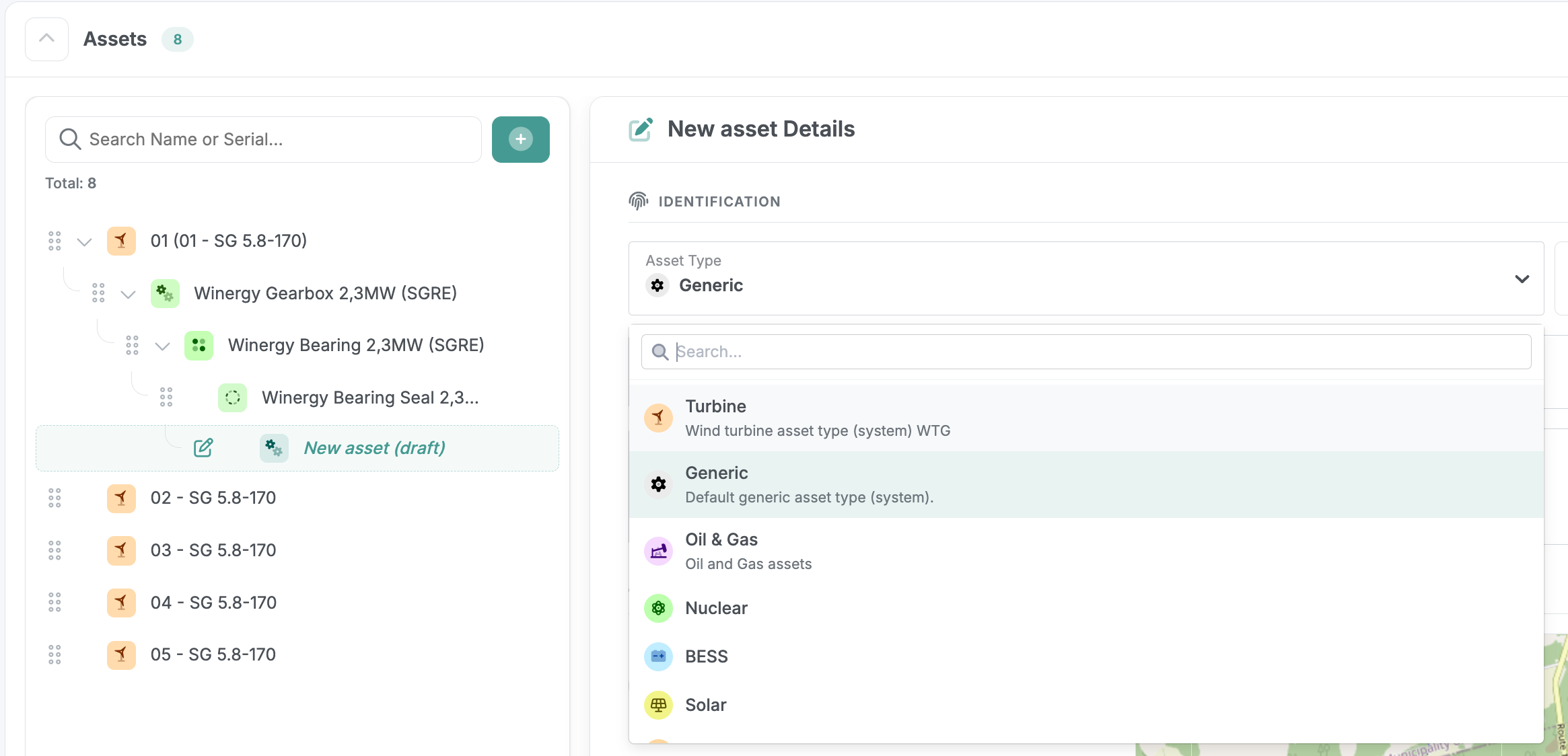
- Tap Create asset.
Repeat the same steps on any asset or sub-asset in the tree to build the hierarchy out as deep as you need.
Tutorial 5: Duplicate, move, reorder or delete an asset
All of these actions happen in the asset tree on the Edit site screen.
Duplicate, move or delete
1. Tap the three dots icon at the far right of the asset's row in the tree.
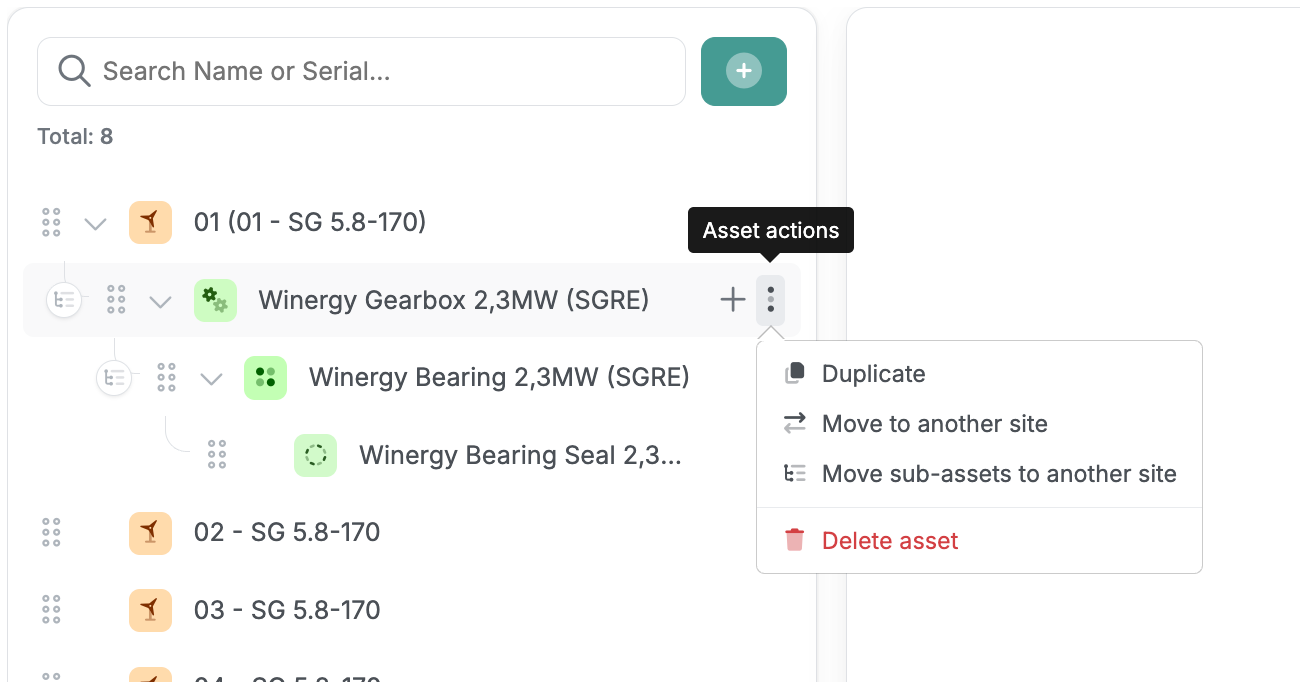
2. Choose the action you need:
- Duplicate the asset.
- Move the asset to another site. Any sub-assets beneath it move with it.
- Move the sub-asset only, leaving the rest of the tree in place.
- Delete the asset.
Reorder or move assets by dragging
1. Click and hold the six dots icon on the left of the asset's row.
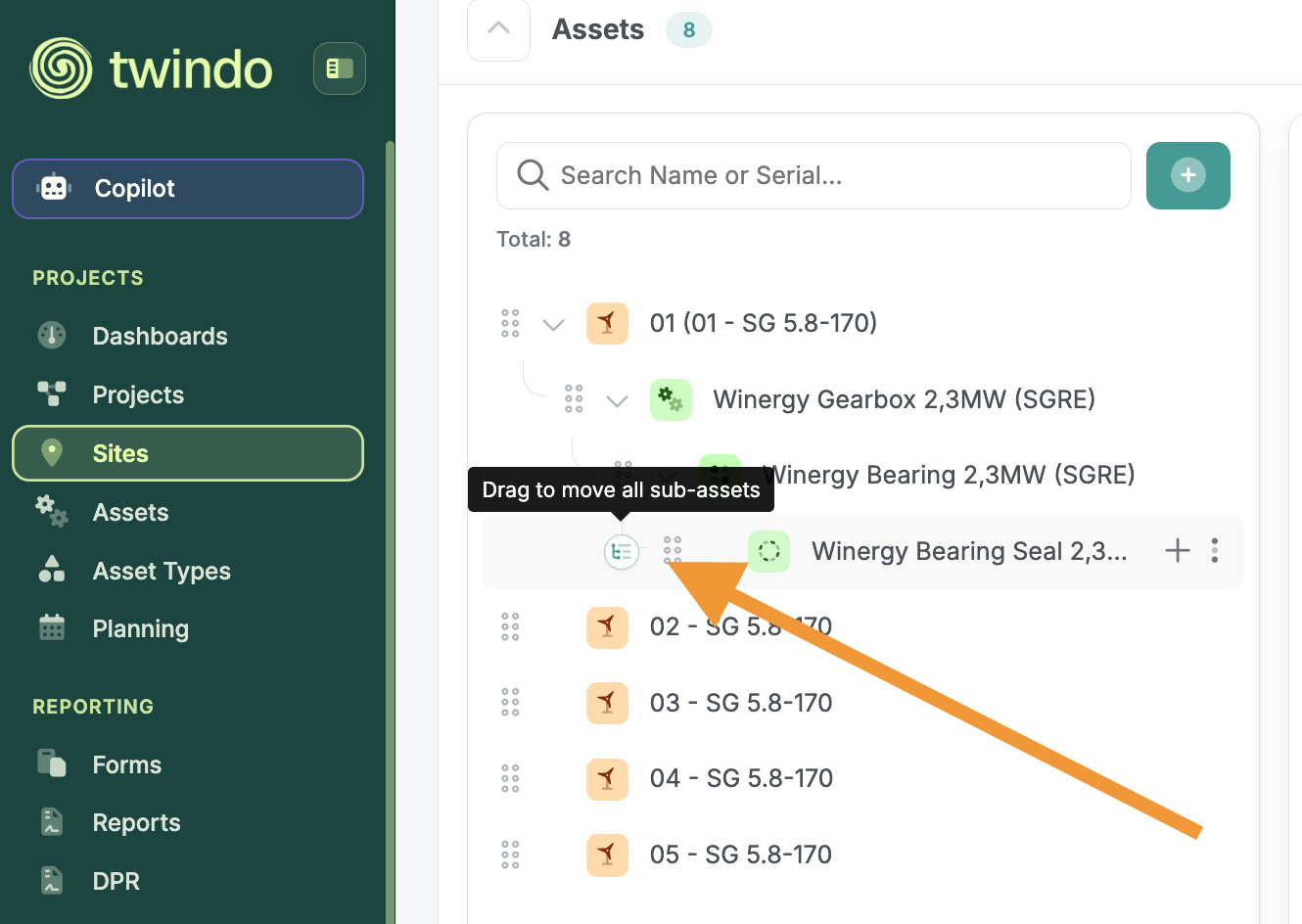
2. Drag the asset to its new position in the tree and release.
This is the quickest way to rearrange the order of assets or re-parent one asset under another.
Tutorial 6: Find and open an asset
1. Open the Assets menu tab to see your assets list table.
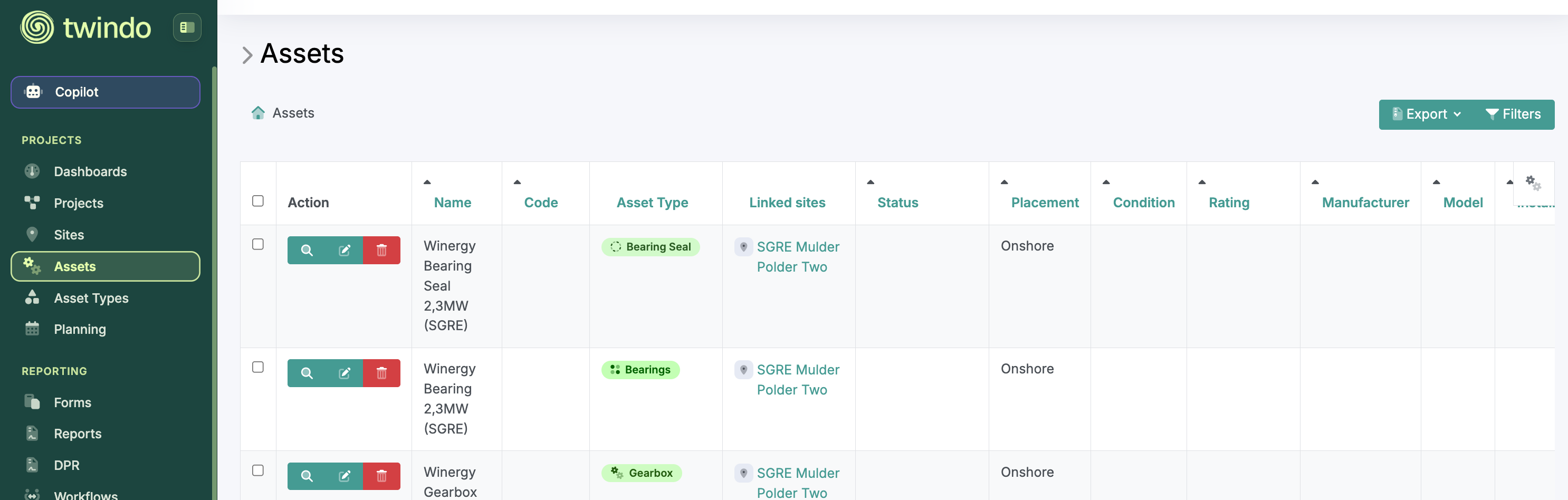
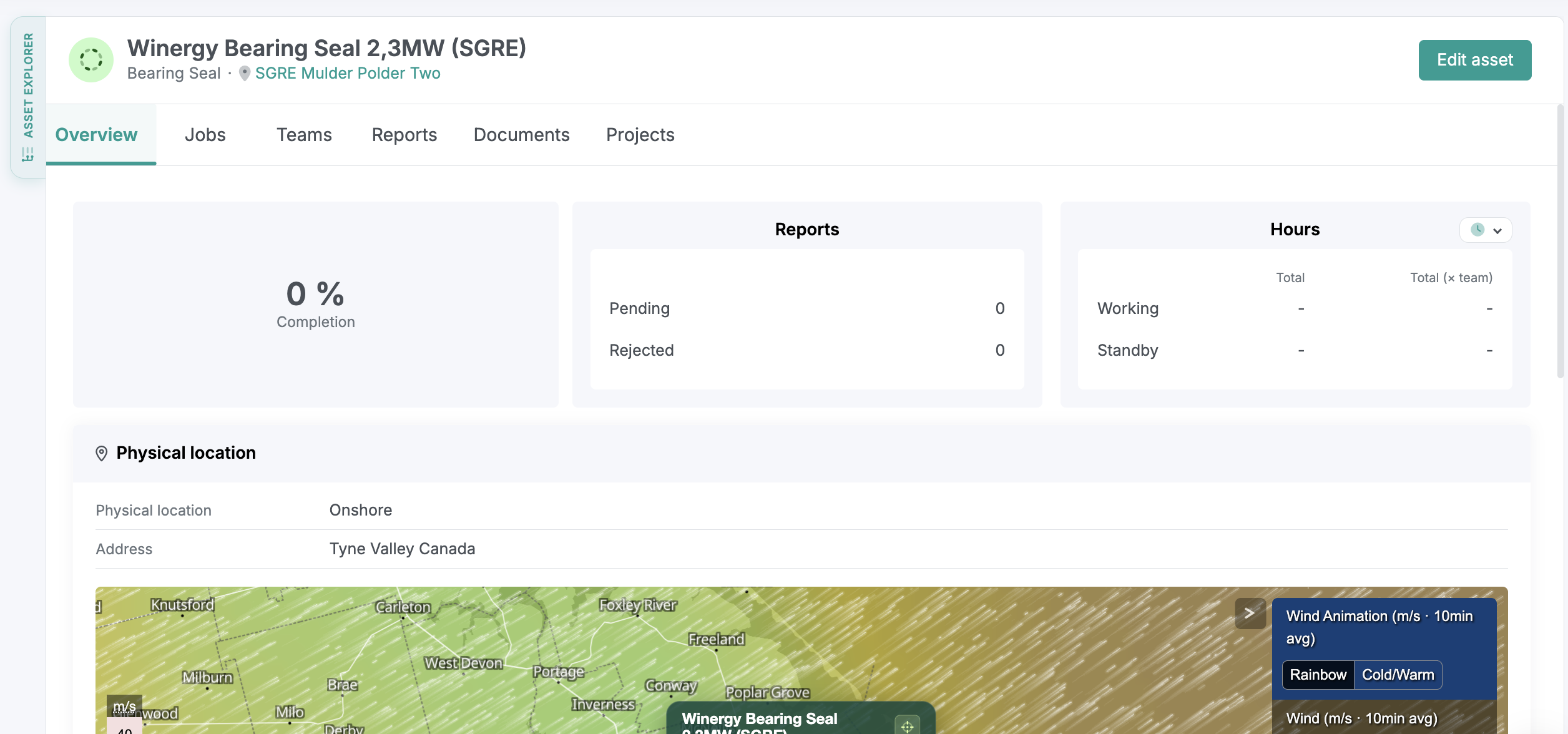
2. To view an asset, tap the magnifying glass icon on the left of its row. This opens the asset show screen.
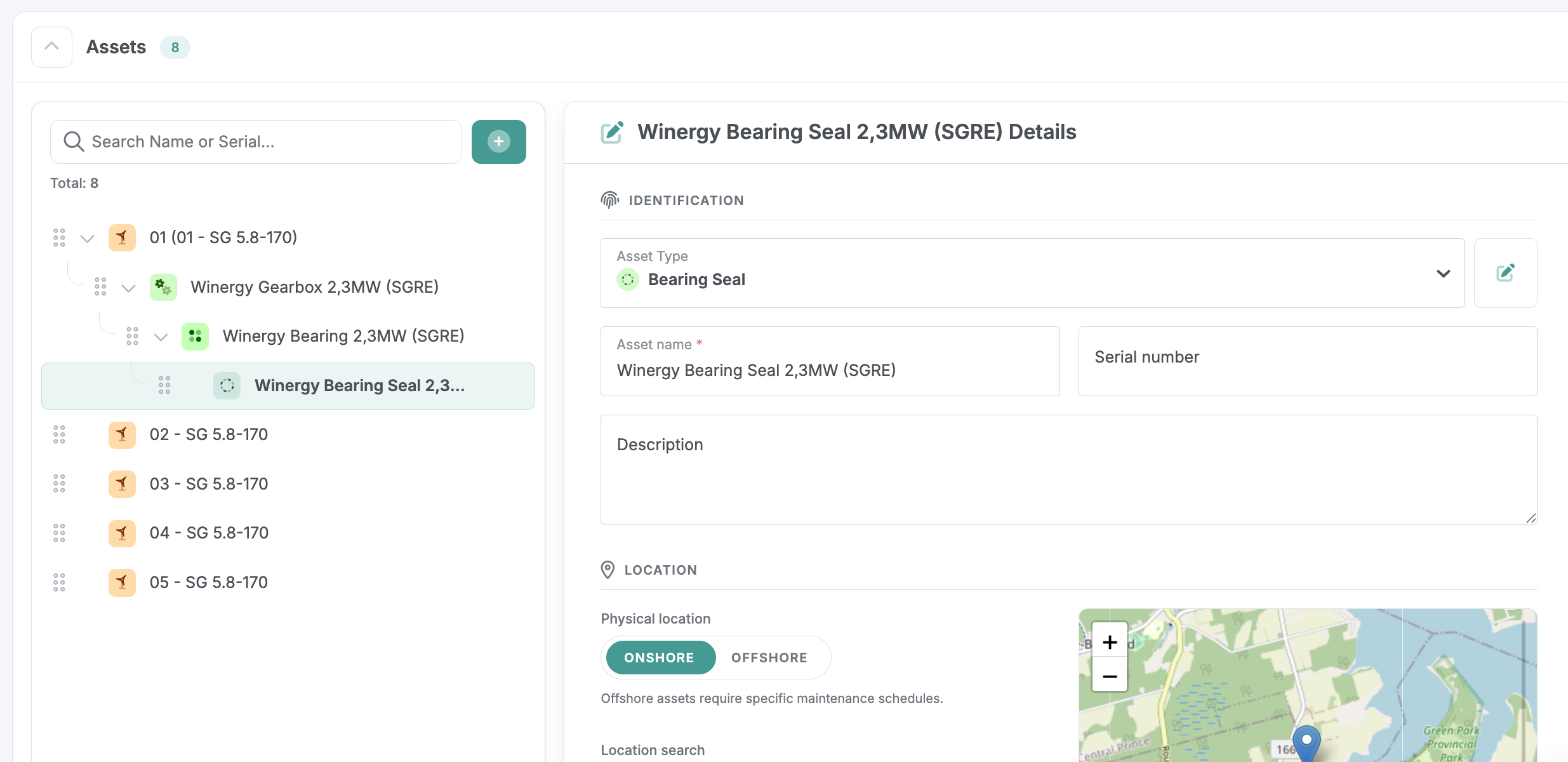
3. To edit an asset, tap the edit icon on its row.
Change which columns the table shows
The assets table includes additional columns to support the new fields.
1. Tap the table settings icon (two grey cogs) at the top right of the table.
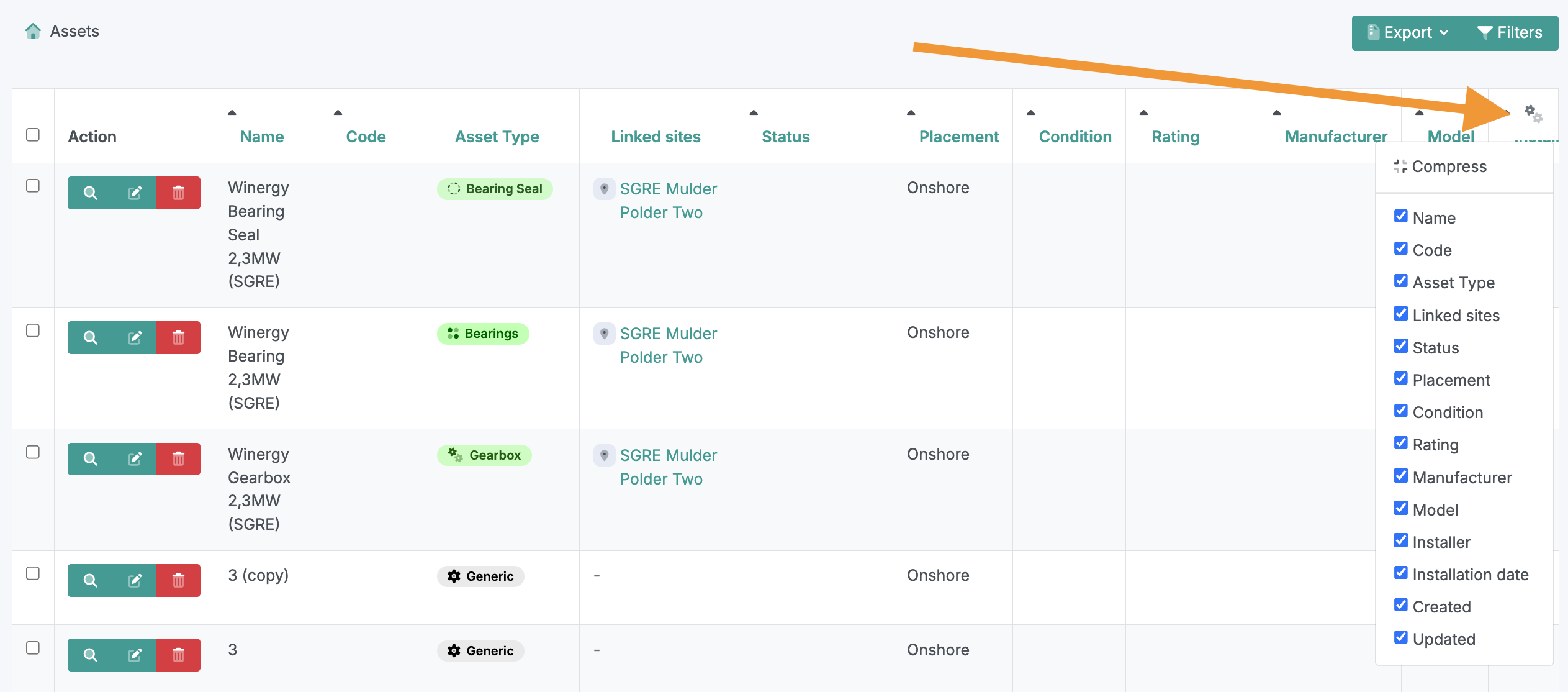
2. Select or de-select the column types you want to see.
Tutorial 7: Edit an asset and attach notes, documents and files
1. Open the asset from the Assets menu tab, or from the asset explorer.
2. Tap Edit asset.
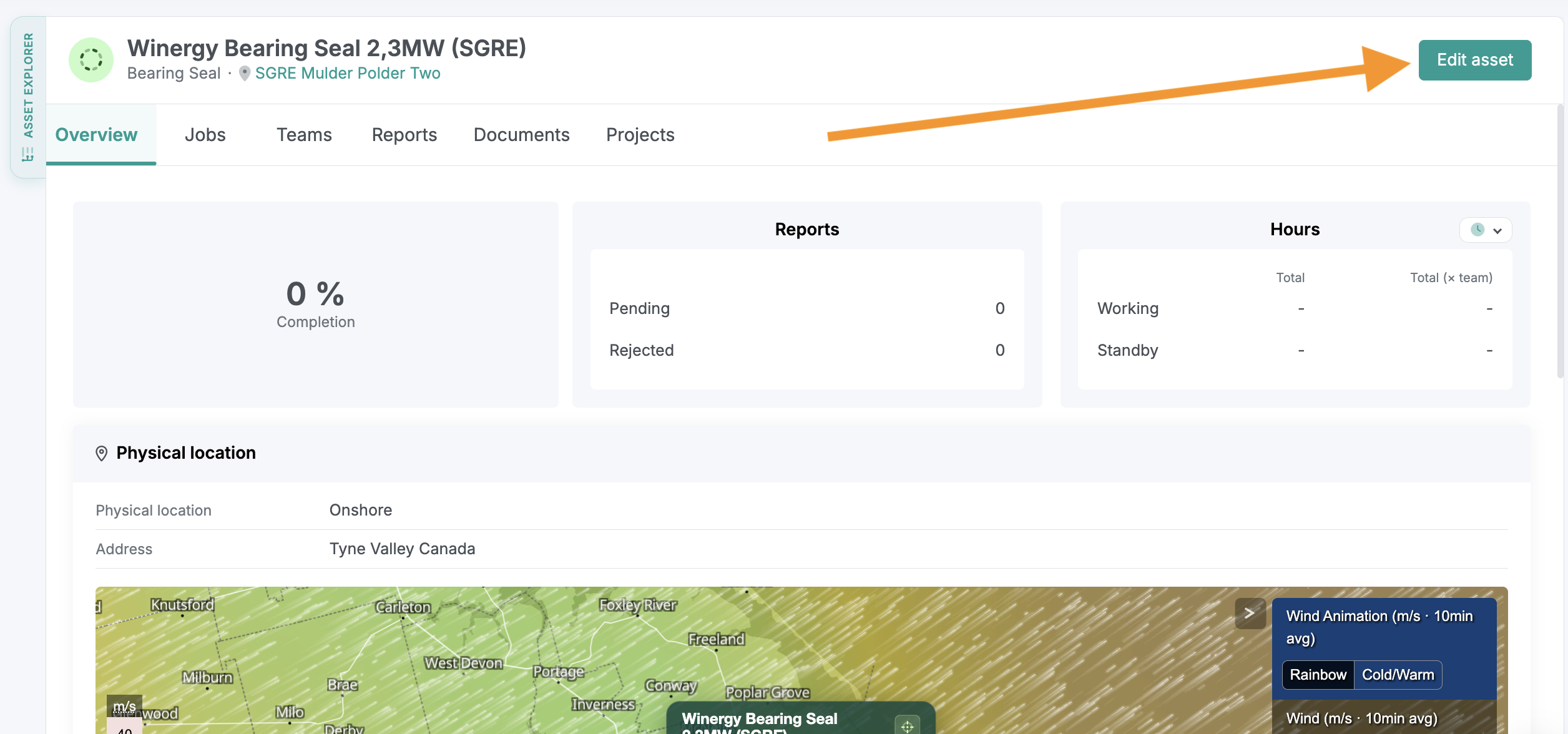
3. Update the asset fields, add notes, or upload documents and files.
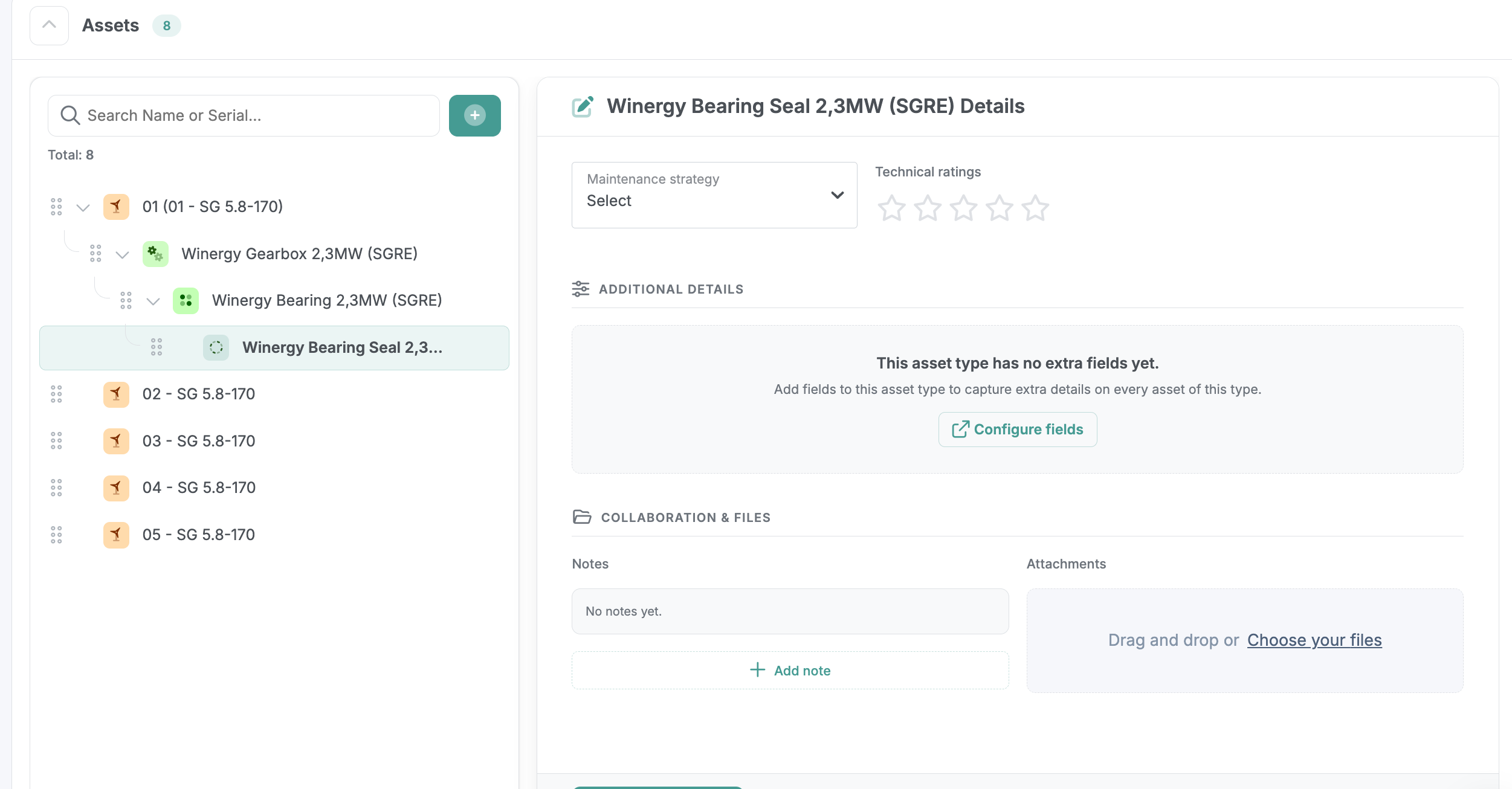
4. Save your changes.
Editing takes place in the site edit area, but applies specifically to the asset or sub-asset you selected, so information stays attached to the right level of the tree.
Tutorial 8: Read an asset's digital twin on the asset show screen
The asset show screen brings together everything recorded against a single asset or sub-asset:
- Overview: all historical overview data for the asset.
- Jobs: jobs performed on the asset.
- Teams: the people who have worked on it.
- Reports: reports submitted against it.
- Projects: projects it is associated with.
Navigate the asset tree
1. On the asset show screen, tap the Asset explorer side tab in the top left.
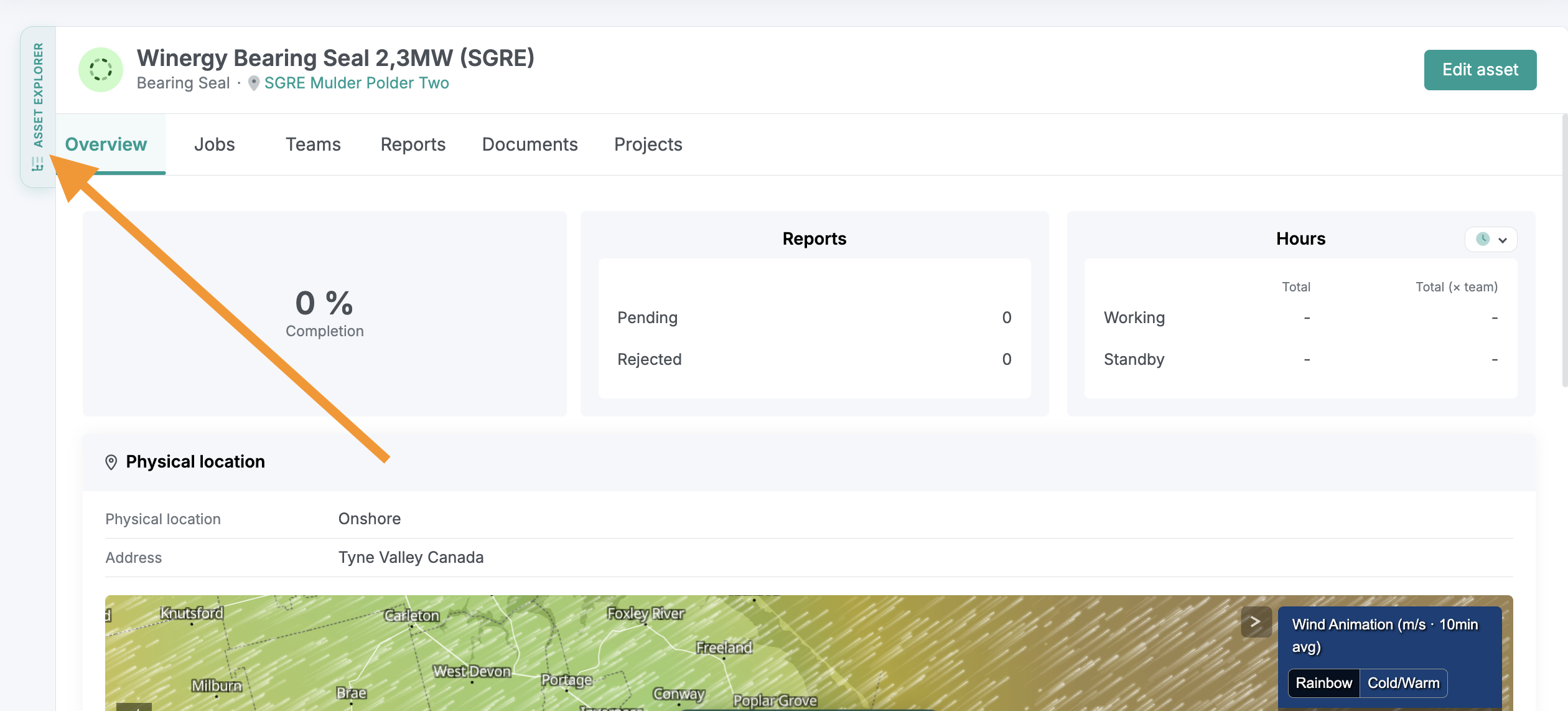
2. The asset tree for that asset opens. If you are viewing a sub-asset, the tree shows its parent assets all the way up to the top-level asset.
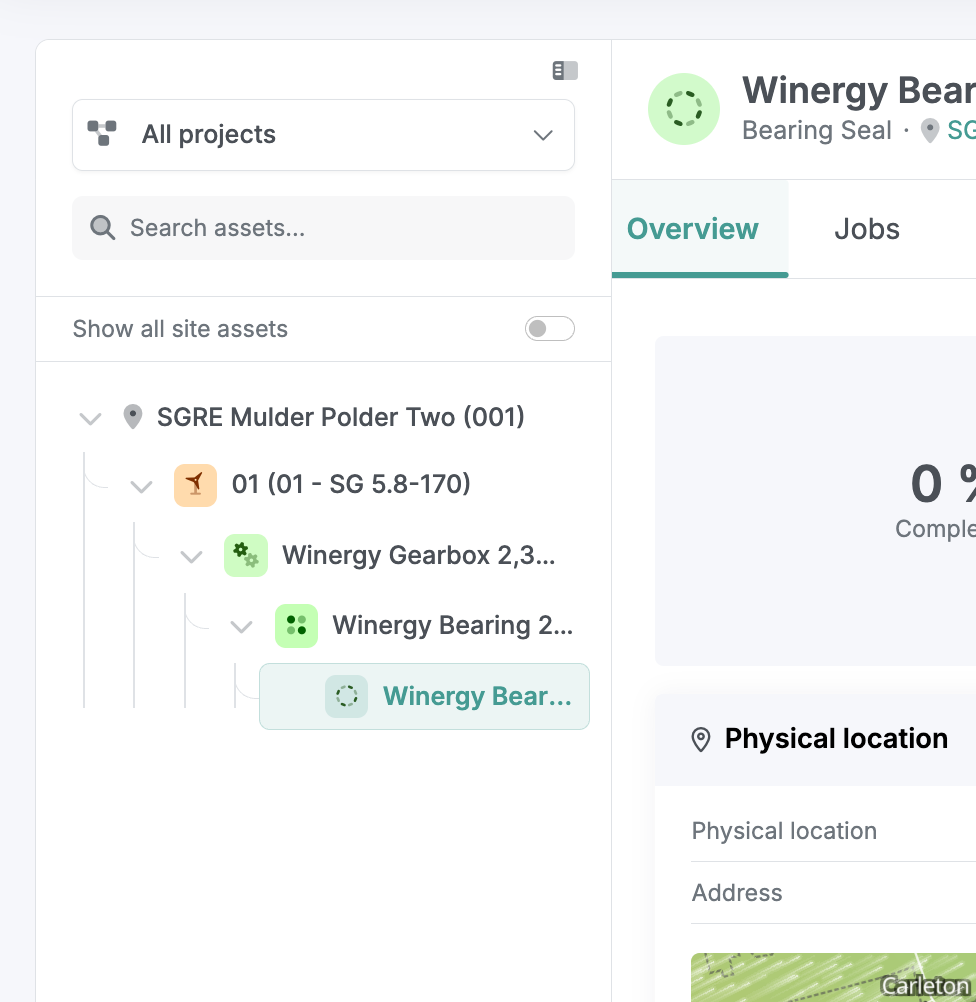
3. Select any asset or sub-asset in the hierarchy to view it.
Where else sub-assets appear across Twindo
Once an asset has sub-assets, they become available in the rest of the platform automatically.
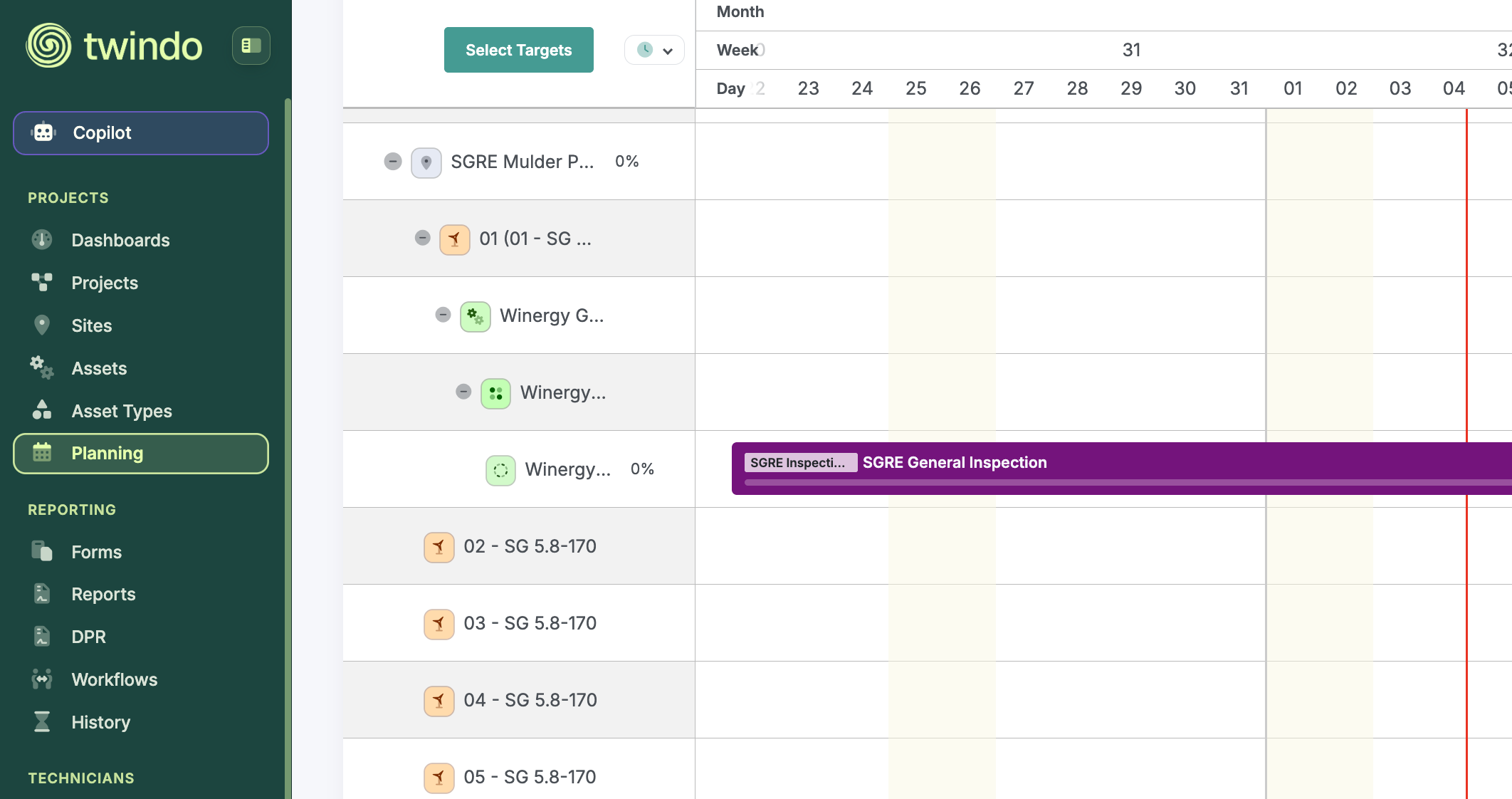
Planboard: Sub-assets are reflected in the planboard, so you can create job slots at sub-asset level rather than only against the parent asset. Open an collapse at your will.
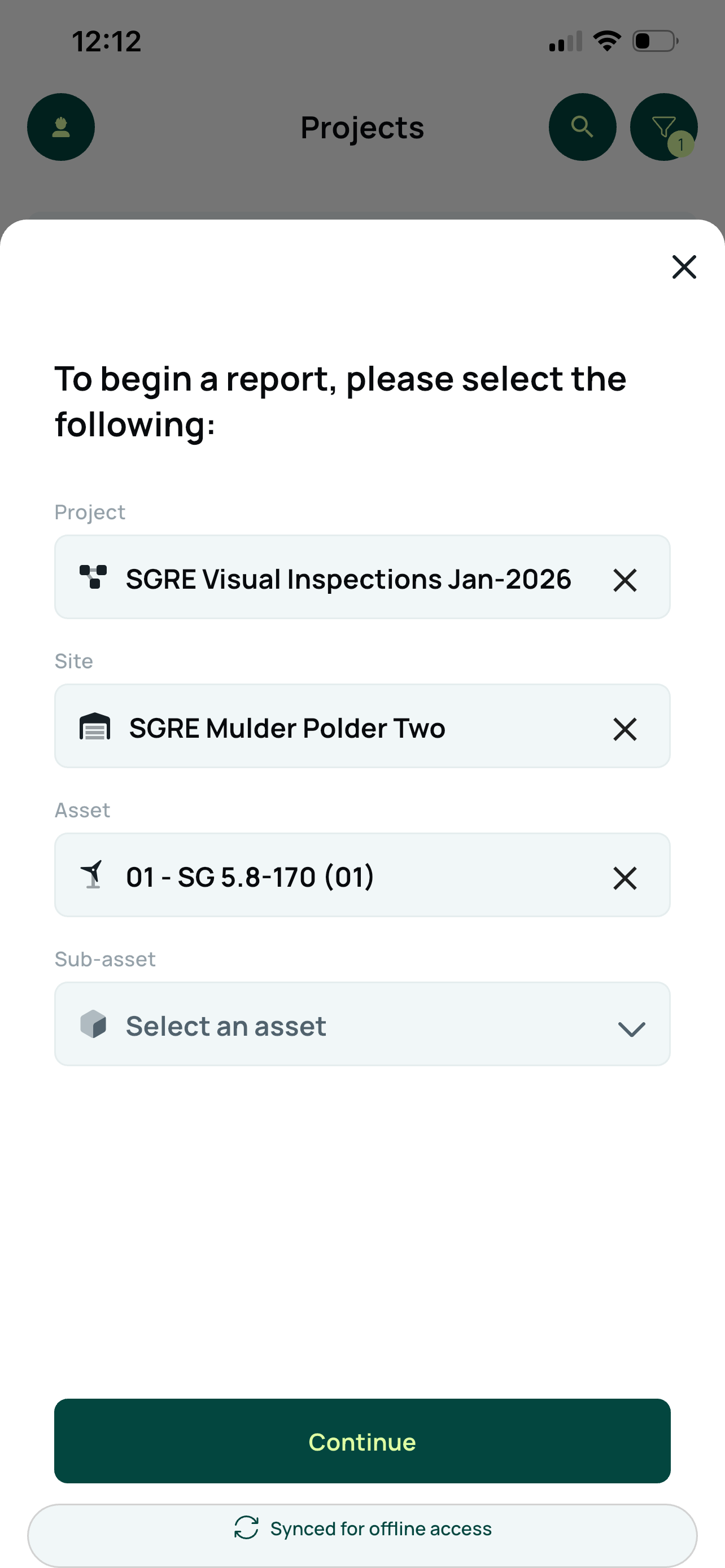
Mobile reports: When a technician starts a new report, the target location screen lets them drill down to sub-asset level, provided sub-assets exist on that asset.
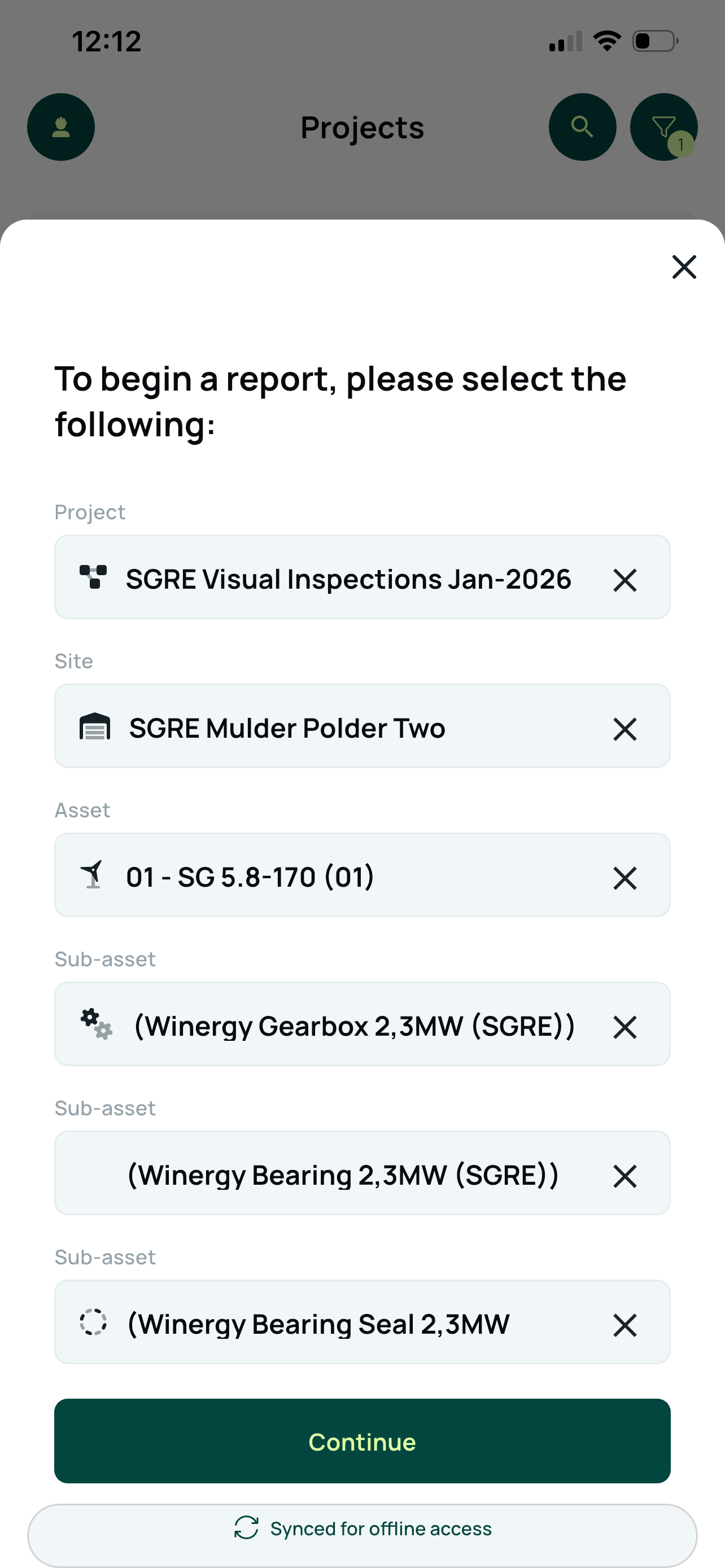
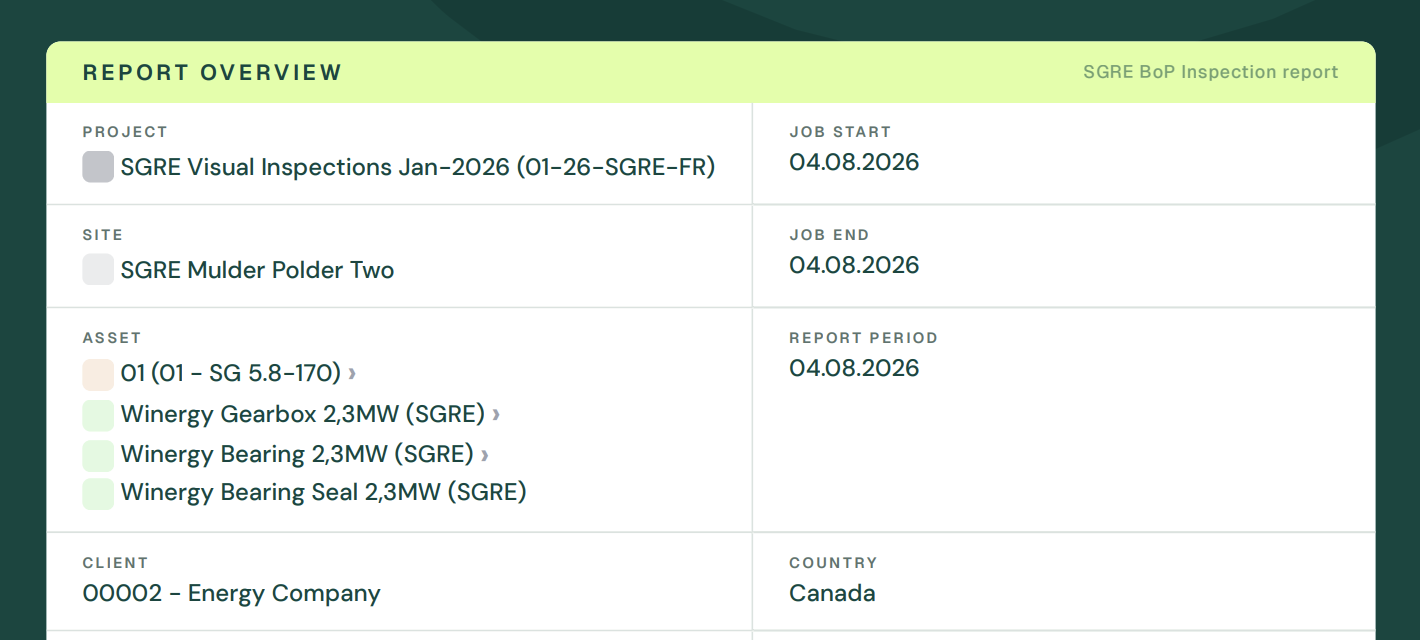
Reports, DPRs and PDFs: The asset type icon follows the asset throughout the platform. Where a sub-asset has been selected, it is shown in the report details inside reports, DPRs and exported PDFs.
Working in assets with your Twindo agents
Everything captured against an asset type, asset or sub-asset becomes AI-native data. Your Twindo agents can:
- Answer natural language questions about specific assets, sub-assets, or entire sites, fleets and comparisons;
- Use consistent custom fields to run accurate, repeatable workflows.
- Give owners and operators a way to interrogate their own asset data directly, within their client portal.
Consistent asset types and custom fields produce better agent answers, at scale, so it is worth standardising your asset types before you create assets in bulk.
FAQ
Do I have to use asset types and sub-assets? No. The feature is optional. If you do not create asset types or sub-assets, your environment works as it did before.
Will my historical turbine data be affected? No. Historical data is not changed, moved or reformatted.
Can I delete the Turbine asset type? No. Turbine is a fixed asset type and always exists in your environment.
How deep can the hierarchy go? An asset can hold sub-assets, and those sub-assets can hold sub-assets of their own, which is how the asset tree is built. Up to 5 levels deep (sub-sub-sub-sub-assets).
Where do I create a new asset? Assets must be added to a site. Open the Site menu tab, tap Edit site, then tap Add new asset.
Where has "Pad number" gone? Pad number is now called asset name. Serial number is unchanged.
How do I move an asset to another site? In the asset tree on the Edit site screen, tap the three dots icon on the asset's row and choose the move option. Sub-assets move with their parent asset.
Why can't a technician select a sub-asset when starting a report? Sub-asset selection only appears when the target asset actually has sub-assets. Add the sub-assets first, using the cross icon in the asset tree on the Edit site screen.
Why can't I see my new asset fields in the assets table? Open the table settings icon (two grey cogs) at the top right of the assets table and select the columns you want to display.
Why can't I add asset name or serial number to an asset type? Those fields identify one specific asset, not a category of assets, so they are entered when you create the individual asset rather than on the asset type template.
Can I reuse an asset type I have already built? Yes. Open the asset type and tap Duplicate in the top right, then edit and save the copy.