
Sites V2.0
Overview
The Sites feature has been redesigned to make setting up and managing projects faster and more organized.
Use the Sites tab as your central directory for all locations and their connected assets. Each site links directly to its related projects and reports, giving you an instant overview of site activity and historical data.
Viewing and Managing Sites
Go to Sites in the main menu to view a list of all locations.
From here, you can:
- Open a site to view its details
- Edit site and asset information
- Review reports and projects linked to that site
Adding a New Site
You can add new sites directly from the Sites menu or while setting up a new project.
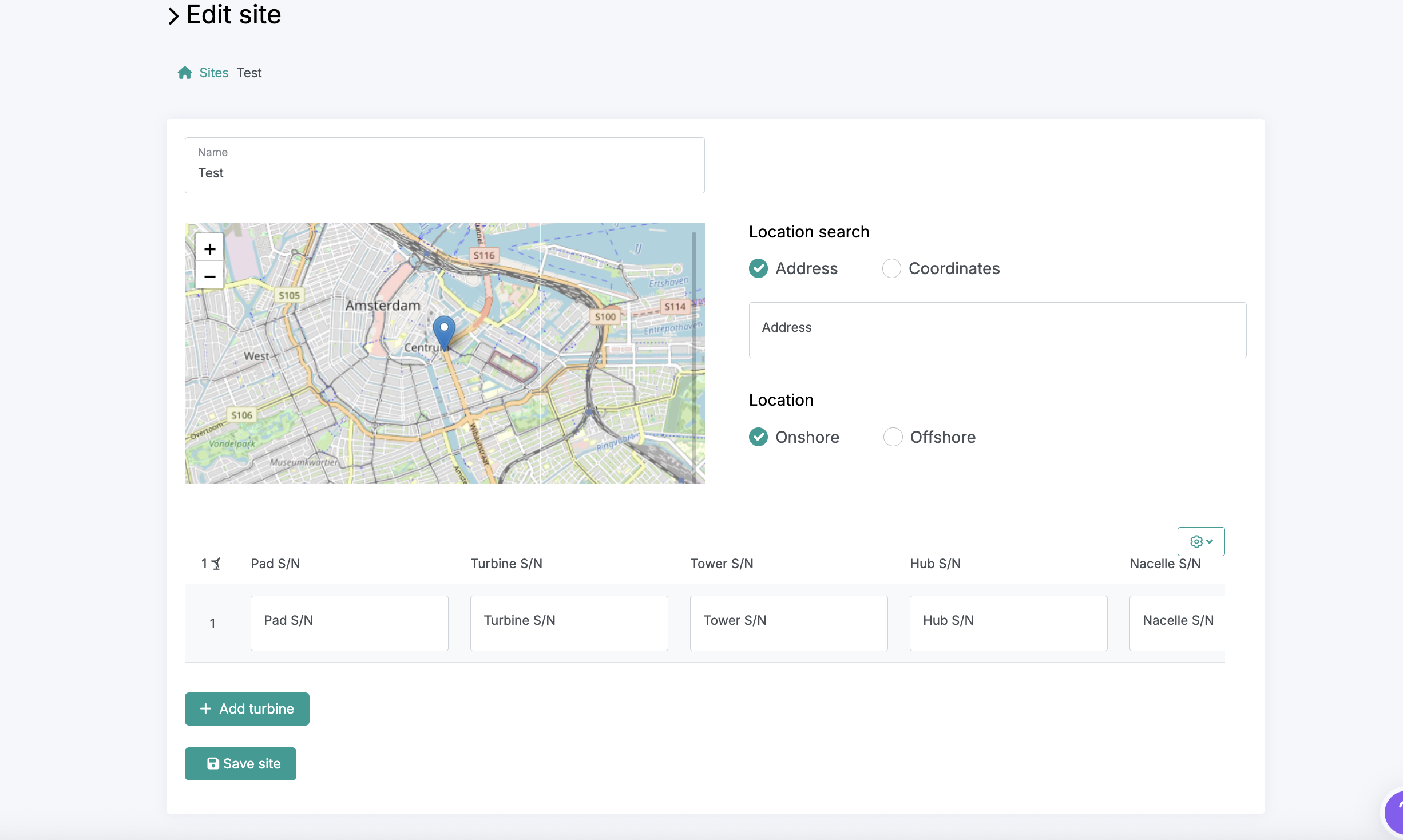
To add from the Sites menu:
- Open the Sites tab.
- Select Add New.
- Enter a site name and location details.
- Tap Save Site to confirm and open the details page.
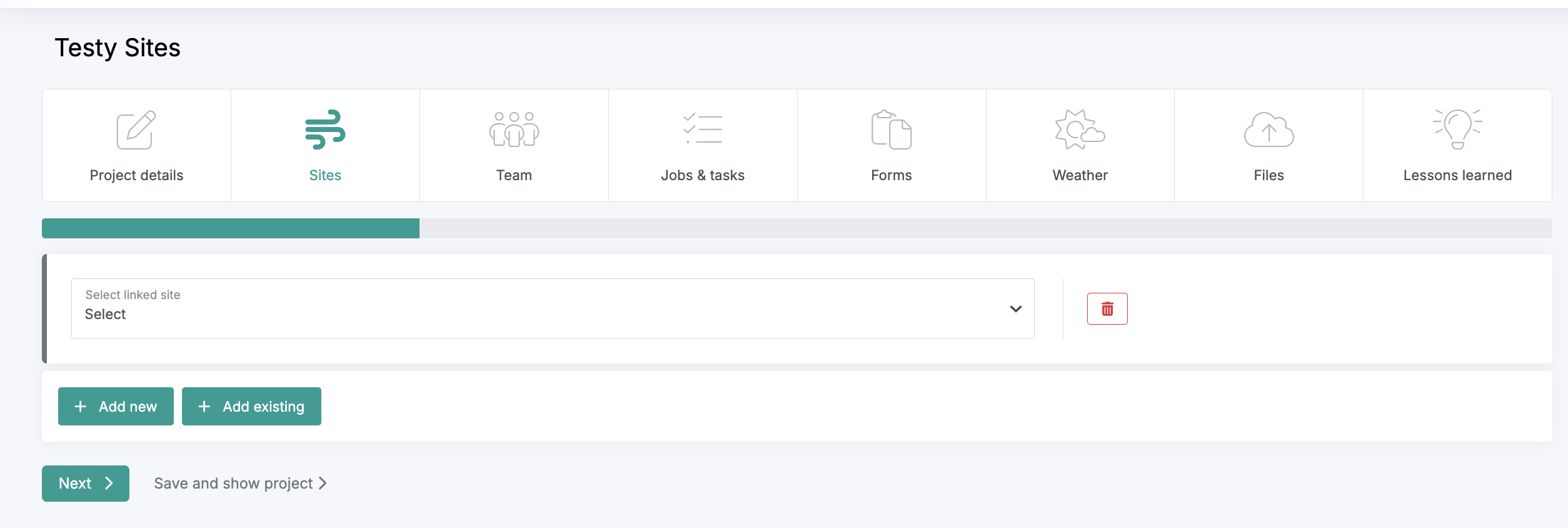
To add from the Project Wizard:
- In the Site step of project setup, tap Add New.
- Enter the site name and select Save Site.
- A new tab will open where you can add site and asset details before continuing with your project setup.
Best Practices
- Use consistent site names. Avoid using multiple names for the same location unless it’s intentional.
- Update details centrally. All changes to a site’s information can be made directly from the Sites tab.
Coming Soon
We’re developing a new update that will make adding sites and turbines even faster, reducing the setup process to just a few clicks. Stay tuned for more information in an upcoming release.